Creating a Universal Template
- Former user (Deleted)
- Stonebranch (Deactivated)
- IT Stonebranch
Overview
This page tells you how to create a Universal Template, Universal Template Fields, Universal Template Field Choices, and Universal Template Event Templates.
You must create Universal Templates in order to create Integrations. For each Universal Template that you create, Universal Controller creates a Universal Task type for which you can create one or more Universal Tasks.
Each Universal Field that you create for a Universal Template becomes a field in every Universal Task based on the corresponding Universal Task type.
If the Universal Template Field that you create is a Choice (drop-down list) field, you must create the choices.
If the Universal Template Template Type is Extension, you can create Event Templates for the Universal Template .
For detailed information on Universal Templates and Fields, see Universal Templates Overview.
Creating a Universal Template
|
Step 1 |
From the Administration navigation pane, select Configuration > Universal Templates. The Universal Templates list displays. Note The System Template column. which does not display by default, identifies any Built-In Universal Templates that have been loaded from the List/Load Built-In Universal Templates server operation.
|
|---|---|
|
Step 2 |
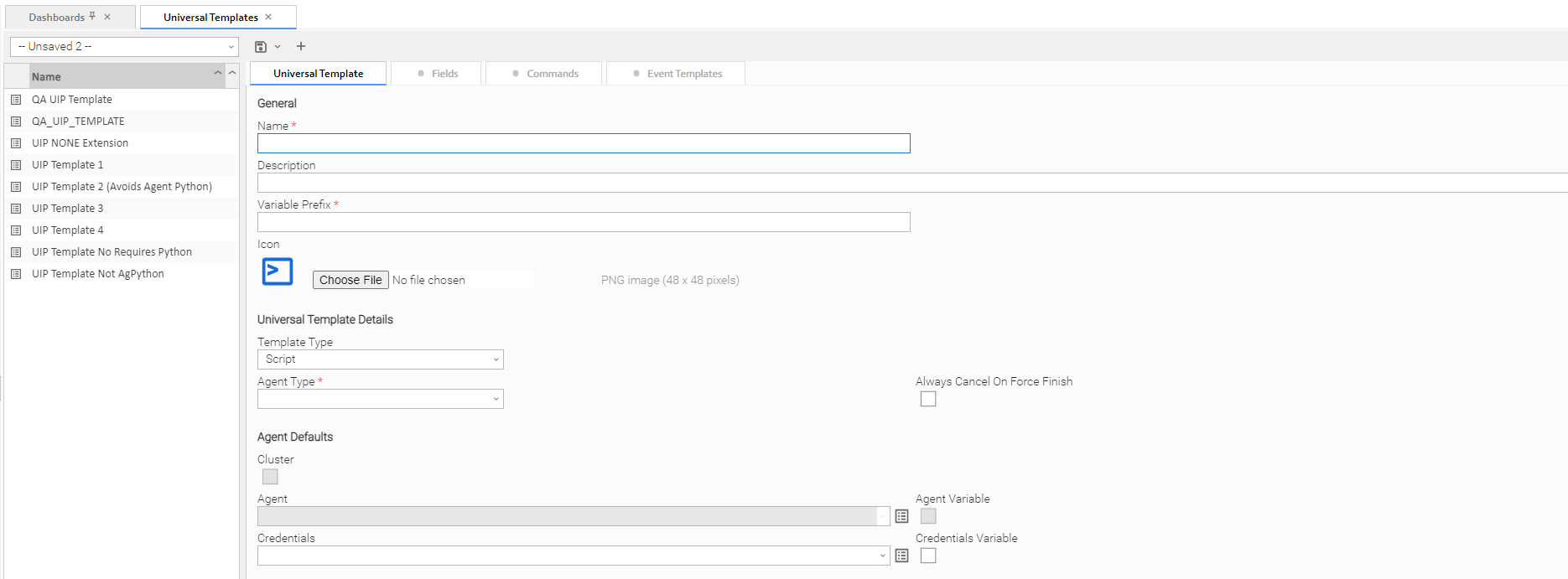
Enter / select Details for a new Universal Template, using the field descriptions below as a guide.
To display more of the Details fields on the screen, you can either:
|
|
Step 3 |
Click a Save button. The template is added to the database, and all buttons and tabs in the Universal Template Details are enabled. |
Note
To open an existing record on the list, either:
- Click a record in the list to display its record Details below the list. (To clear record Details below the list, click the New button that displays above and below the Details.)
- Clicking the Details icon next to a record name in the list, or right-click a record in the list and then click Open in the Action menu that displays, to display a pop-up version of the record Details.
- Right-click a record in the a list, or open a record and right-click in the record Details, and then click Open In Tab in the Action menu that displays, to display the record Details under a new tab on the record list page (see Record Details as Tabs).
Universal Template Details
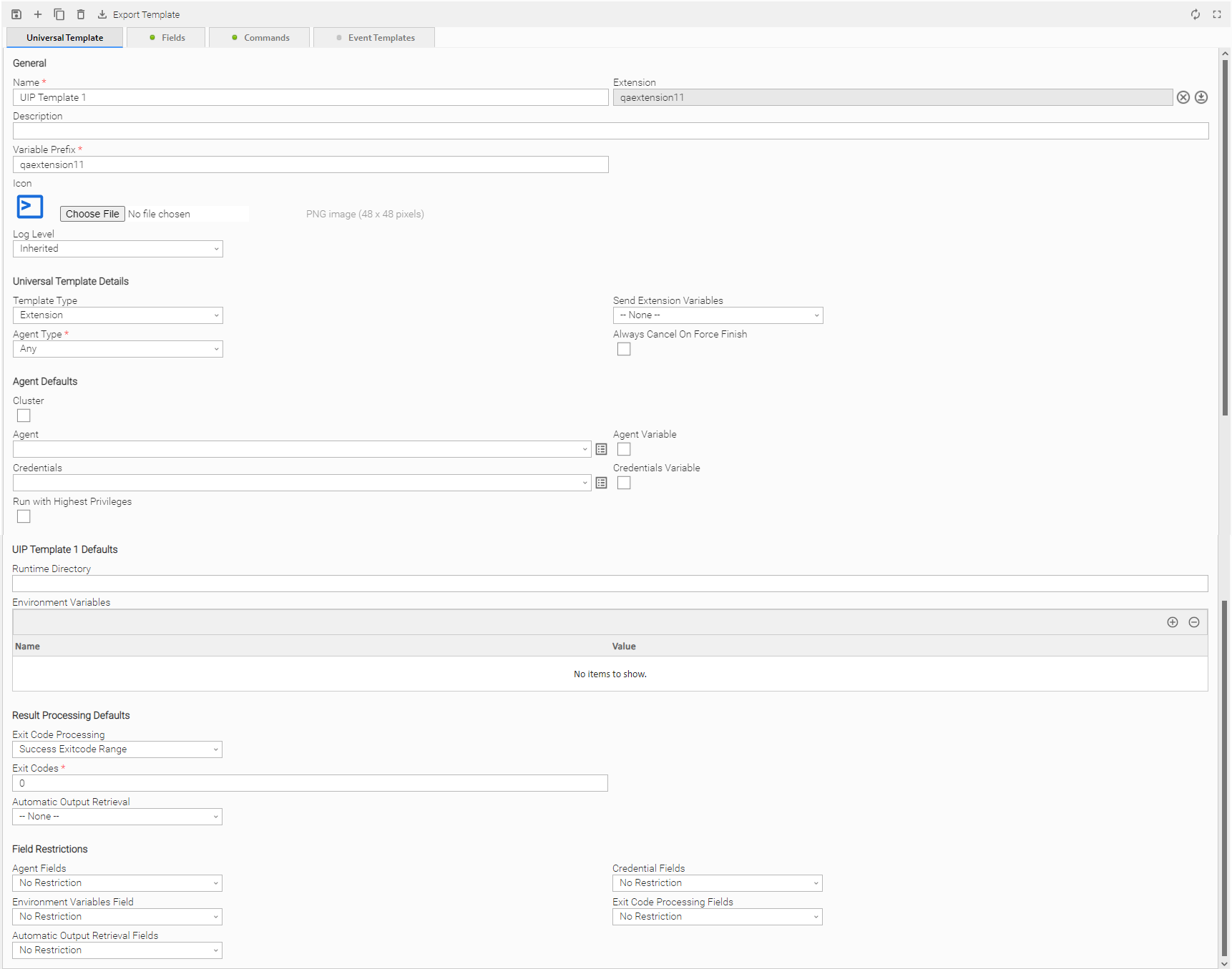
The following Universal Template Details is for a new Universal Template, which does not yet contain any user-defined Fields. (See Creating Universal Template Fields for an existing Universal Template Details containing user-defined fields.)
Depending on the values that you enter / select for these fields, more (or less) other fields may display. See the field descriptions, below, for a description of all fields that may display in the Universal Template Details.
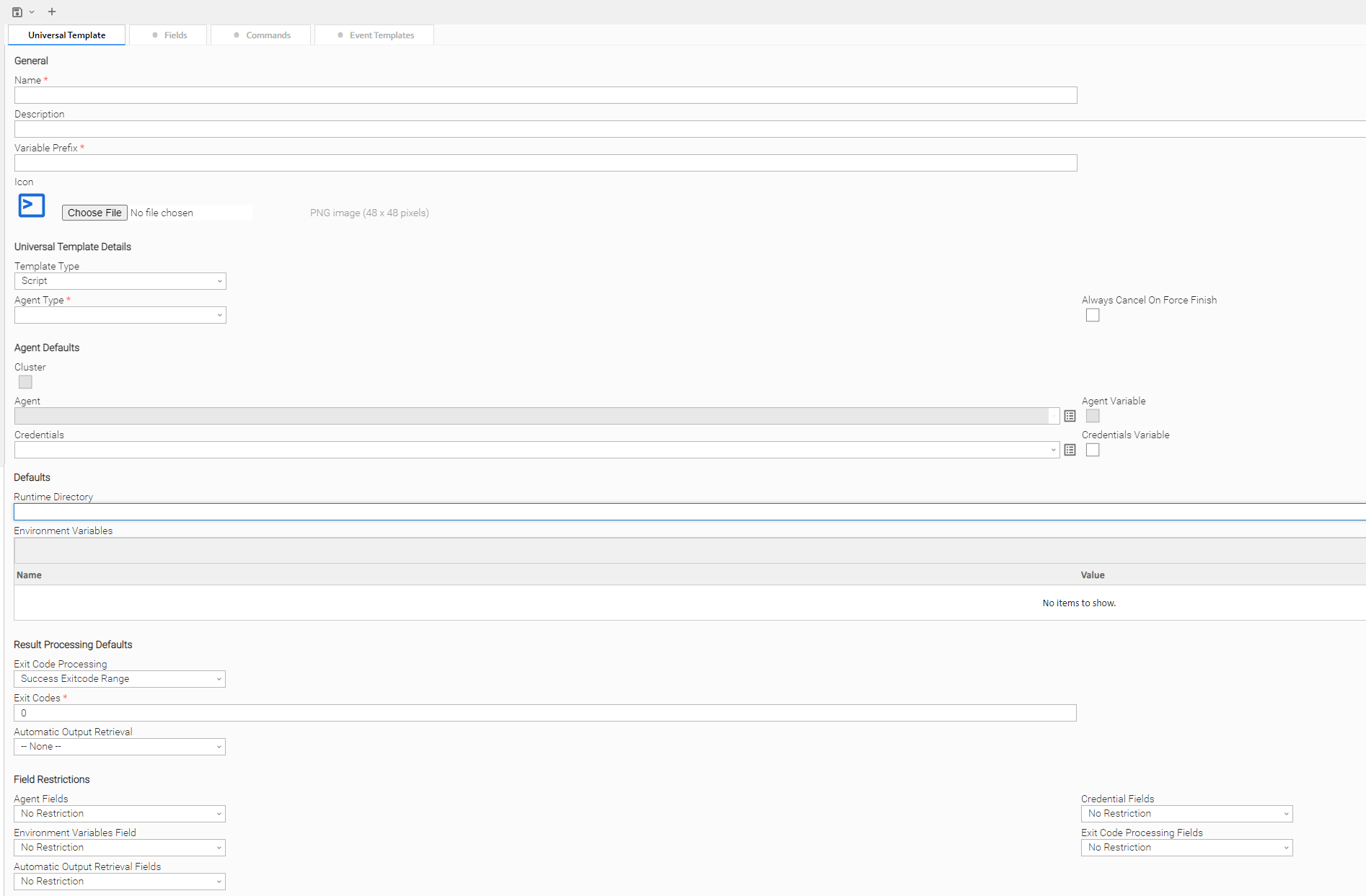
For information on how to access additional details - such as Metadata and complete database Details - for Universal Templates (or any type of record), see Records.
Universal Template Details Field Descriptions
The following table describes the fields, buttons, and tabs that display in the Universal Template Details.
|
Field Name |
Description |
|---|---|
|
General |
This section contains general information about the template. |
|
Name |
Name of this Universal Template. |
| Extension | If Template Type is Extension; Python Extension name. |
|
Description |
Description of this record. Maximum length is 255 characters. |
|
Variable Prefix |
Variable prefix to append to the default prefix (ops_) for the system-assigned variables that are provided for the user-defined Fields in this Universal Template. The format of a system-assigned variable is: |
|
Icon |
Icon used for all Universal Tasks based on this Universal Template. The icon displays in the following locations: A default icon displays in the Icon field for every Universal Template (see Universal Template Details, above). Note The button that lets you search for an icon file, and the text message alongside it, is browser-dependent. In this example, which shows a Browse... button and No file selected. text, the browser was Firefox. |
| Log Level | If Template Type is Extension; Log Level for Universal Extension logging. Specify Inherited to inherit the Agent Log Level setting |
|
Universal Template Details |
This section contains assorted detailed information about the template. |
|
Template Type |
Type of Universal Template. Options:
|
|
Send Extension Variables |
If Template Type is Extension; Specification for whether the Extension should be provided with task instance variable data when launched. Options:
|
|
Agent Type |
Type of Agent on which Universal Tasks based on this template can be run.
|
|
Always Cancel On Force Finish |
Specification for whether or not to always perform a Cancel when Force Finishing a Universal Task for this template. |
|
Use Common Script |
If Template Type is Script and Agent Type is Any; Indication that the specified Script can be executed by both Linux/Unix and Windows Agents. |
|
Script |
If Use Common Script is enabled; Script to be executed by the specified Agent. |
|
Linux/Unix Script |
If Template Type is Script and Agent Type is Linux/Unix or Any (and Use Common Script is not enabled); Script to be executed by the Linux/Unix Agent. |
|
Windows Script |
If Template Type is Script and Agent Type is Windows or Any (and Use Common Script is not enabled); Script to be executed by the Windows Agent. |
|
Windows Script File Type |
If Template Type is Script and Agent Type is Windows or Any; Type of Windows script to be executed by the Windows Agent.
|
|
Agent Defaults |
This section contains Agent default fields that will display for every Universal Task based on this template. |
|
Cluster |
Indication that selecting an Agent Cluster is required and selecting Broadcast, which lets you select a Cluster Broadcast, is optional. If Cluster is selected, selecting an Agent is not required unless Agent Variable is selected. |
|
Broadcast |
Displays only if Cluster is selected; Indication that selecting a Cluster Broadcast is required. Selecting Broadcast hides the Agent and Agent Cluster fields; you cannot select values for them. |
|
Agent |
Name of the Agent resource that identifies the machine where the operation will run. |
|
Agent Cluster |
|
|
Agent Variable |
Indication of whether the Agent field is a reference field for selecting a specific Agent (unchecked) or a text field for specifying the Agent as a variable (checked). Use the format: ${variable name}. The variable must be a supported type as described in Variables and Functions. Note When updating multiple Tasks, to change from using an Agent reference to using an Agent variable, you must change the Agent Variable field to Yes and specify the Agent variable in the Agent Unresolved field. Conversely, to change from using an Agent variable to using an Agent reference, you must change the Agent Variable field to No and specify the Agent reference in the Agent field. |
|
Agent Cluster Variable |
Indication of whether the Agent Cluster field is a reference field for selecting a specific Agent Cluster (unchecked) or a text field for specifying the Agent Cluster as a variable (checked). Use the format: The variable must be a supported type as described in Variables and Functions. Note When updating multiple Tasks, to change from using an Agent Cluster reference to using an Agent Cluster variable, you must change the Agent Cluster Variable field to Yes and specify the Agent Cluster variable in the Agent Cluster Unresolved field. Conversely, to change from using an Agent Cluster variable to using an Agent Cluster reference, you must change the Agent Cluster Variable field to No and specify the Agent Cluster reference in the Agent Cluster field. |
|
Credentials |
If the user does not have a login shell, add a - character in front of the runtime credentials name. The Controller will provide a shell for that user and strip the - character from the name. |
|
Credentials Variable |
Indication of whether the Credentials field is a reference field for selecting a specific Credential (unchecked) or a text field for specifying the Credential as a variable (checked). Use the format: The variable must be a supported type as described in Variables and Functions. Note When updating multiple Tasks, to change from using a Credentials reference to using a Credentials variable, you must change the Credentials Variable field to Yes and specify the Credentials variable in the Credentials Unresolved field. Conversely, to change from using a Credentials variable to using a Credentials reference, you must change the Credentials Variable field to No and specify the Credentials reference in the Credentials field. |
|
Cluster Broadcast |
Group of Agents, all of which will run this task (compare with Agent Cluster). If Broadcast is selected for a task, you must select a Cluster Broadcast instead of a specific Agent and/or agent cluster. Each instance of the task running on its own Agent becomes a separate task instance record in the database and displays separately on the Activity Monitor. |
|
Cluster Broadcast Variable |
Indication of whether the Cluster Broadcast field is a reference field for selecting a specific Cluster Broadcast (unchecked) or a text field for specifying the Cluster Broadcast as a variable (checked). Use the format: The variable must be a supported type as described in Variables and Functions. |
|
Run with Highest Privileges |
If Agent Type is Windows or Any; Execute the task using an elevated privileges token, rather than one subject to User Account Control (UAC) restrictions. An elevated token allows a process to execute with all the privileges available to its specified credentials. For example, a task executed with an administrative account will behave as though it received permission via a UAC dialog to perform a privileged operation. Note This option only will affect tasks executed on Windows systems that support User Account Control (UAC). It will have no affect on tasks run on Windows releases prior to Vista (for example, Windows XP, Server 2003). |
|
Template Defaults |
This section contains template-specific default fields that will display for every Universal Task based on this template. |
|
Runtime Directory |
|
|
Environment Variables |
Allows you to enter environment variables needed by the program to run. To add a variable, click the + icon and enter a Name and Value. To delete a variable, select in the list of variables and click the - icon. You can add a maximum of 4,000 characters for the combined Names and Values of all variables. The variable is listed in the space underneath. |
| Result Processing Defaults | This section contains assorted detailed information about result processing defaults for this task. |
|
Exit Code Processing |
Specifies how the Controller should determine whether the executed command failed or completed successfully. Options:
|
|
Output Type |
Required if Exit Code Processing = Success Output Contains or Failure Output Contains; type of output. Options:
|
|
Content Type |
If Output Type is Extension; Output type that the Result Processing mechanism should assume when evaluating the output. If the expected output is XML or JSON, it is valid to specify Text. However, when specifying XML or JSON, the output must be XML or JSON respectively; otherwise, the parsing will fail and the path expression evaluation will return no matches. |
|
Path Expression |
XPath Expression if Content Type is XML, or the JsonPath Expression if Content Type is JSON, to be used when evaluating the Extension output. |
|
Operator |
If Output Type is Extension; Condition Operator to evaluate in combination with the specified condition Value. |
|
Value |
If Output Type is Extension; Condition Value to evaluate in combination with the specified condition Operator. |
|
Strategy |
If Content Type is XML or JSON; Strategy to take when applying the condition Operator and Value against the Path Expression matches when Content Type is XML or JSON. |
|
Auto Cleanup |
Enables the auto cleanup of Extension output upon task instance completion or, if the task instance is within a workflow, when the top level workflow instance completes. |
|
Scan Output For |
Required if Exit Code Processing = Success Output Contains or Failure Output Contains; text for which the Controller should scan the output file. The Controller will process this field as a regular expression. |
|
Output File (for Exit Code Processing) |
Required if Output Type = File; path and file name of the output file that should be scanned for the text in the Scan Output For field. |
|
Exit Codes |
Required if Exit Code Processing = Success Exitcode Range or Failure Exitcode Range; range of exit codes. Format: Numeric. Use commas to list a series of exit codes; use hyphens to specify a range. Example: 1,5, 22-30. Variables are supported. |
|
Automatic Output Retrieval |
Specifies whether you want the Controller to automatically retrieve any output from the job and attach it to the task instance record. The Task Automatic Output Retrieval Default Universal Controller system property specifies the default value for this field. Options:
Note Tasks specifying Automatic Output Retrieval will fail with Start Failure if the Agent Output Prohibited field is true in the Details of the specified Agent. |
|
Wait For Output |
If Automatic Output Retrieval = Standard Output, Standard Error, File, or Standard Output/Error, and Failure Only is not enabled (checked); Specification that the task should wait for the requested output before completing. |
|
Failure Only |
If Automatic Output Retrieval = Standard Output, Standard Error, File, or Standard Output/Error, and Wait For Output is not enabled (checked); Indication for whether output should be retrieved on task failure only. |
|
Start Line |
If Automatic Output Retrieval = Standard Output, Standard Error, File, or Standard Output/Error; Instructs the Controller to retrieve data beginning at the line indicated.
|
|
Number of Lines |
If Automatic Output Retrieval = Standard Output, Standard Error, File, or Standard Output/Error; Allows you to limit the retrieved data to the number of lines specified. If a Number of Lines value is not specified, the default is the value of the Retrieve Output Default Number Of Lines Universal Controller system property. |
|
Scan Text |
If Automatic Output Retrieval = Standard Output, Standard Error, File, or Standard Output/Error; Regex pattern that the Controller will search for a match for in STDOUT/STDERR or a specified file. The Controller will include the Number of Lines above and below the first line matched. |
|
Output File (for Automatic Output Retrieval) |
Required if Automatic Output Retrieval = File; path and file name containing the output that you want automatically retrieved and attached to the task instance. |
|
Field Restrictions |
This section lets you specify how fields in the Defaults section of the Universal Template are displayed in Universal Tasks based on the template.
|
|
Agent Fields |
Restriction for the following Agent fields: Agent, Agent Variable, Agent Cluster, Agent Cluster Variable, and Cluster Broadcast. |
|
Credential Fields |
Restriction for the following Credential fields: Credentials, Credentials Variable, Run with Highest Privileges, and Runtime Directory. |
|
Environment Variables Fields |
Restriction for the following Environment Variable field: Environment Variables. |
|
Exit Code Processing Fields |
Restriction for the following Exit Code Processing fields: Exit Code Processing, Exit Codes, Output Type, Scan Output for, and Output File. |
|
Automatic Output Retrieval Fields |
Restriction for the following Automatic Output Retrieval Fields: Automatic Output Retrieval, Wait For Output, Failure Only, Start Line, Number of Lines, Scan Text, and Automatic Output File. |
|
Metadata |
This section contains Metadata information about this record. |
|
UUID |
Universally Unique Identifier of this record. |
|
Updated By |
Name of the user that last updated this record. |
|
Updated |
Date and time that this record was last updated. |
|
Created By |
Name of the user that created this record. |
|
Created |
Date and time that this record was created. |
| Extension Checksum | SHA-256 checksum for the Python Extension Archive. |
| Extension Version | Version of the Extension. |
| Extension API Level | API level that the Extension is compatible with. |
| Extension Requires Python | Python version(s) that the Python Extension Archive is guaranteed to be compatible with. |
| Extension Python Extra Paths | List of paths to add to the search path for Python modules. |
| Extension Owner | Author of the Extension. |
| Extension Organization | Organization of the Author. |
| Extension Comments | (Any comments about the Extension.) |
|
Buttons |
This section identifies the buttons displayed above and below the Universal Template Details that let you perform various actions. |
|
Save |
Saves a new Universal Template record in the Controller database. |
|
Save & New |
Saves a new Universal Template record in the Controller database and redisplays empty Details so that you can create another Universal Template. |
|
Save & View |
Saves a new Universal Template record in the Controller database and continues to display that record. |
|
New |
Displays empty (except for default values) Details for creating a new record. |
|
Update |
Updates the Universal Template record in the Controller database. |
|
Delete |
Delete the currently open Universal Template. |
|
Refresh |
Refreshes any dynamic data displayed in the Universal Template Details. |
|
Close |
For pop-up view only; closes the pop-up view of this Universal Template. |
|
Tabs |
This section identifies the tabs across the top of the Universal Template Details that provide access to additional information about the template. |
|
Fields |
Allows you to create the user-defined fields that will display in the Universal Tasks based on this template. |
| Commands | If Template Type is Extension; additional commands (operations) supported against a task instance (see Creating Commands, |
Creating Universal Template Fields
Universal Template Fields are assigned variables to be used in the Universal Template script and placed in the Details of any Universal Task based on the Universal Template.
|
Step 1 |
From the Administration navigation pane, select Configuration > Universal Templates. The Universal Templates list displays. |
|---|---|
|
Step 2 |
Open an existing Universal Template for which you want to create Fields. |
|
Step 3 |
Click the Fields tab to display the Fields list. |
|
Step 4 |
Click the
|
|
Step 5 |
Enter / select Details for a new Field, using the field descriptions below as a guide.
|
|
Step 6 |
Click a
|
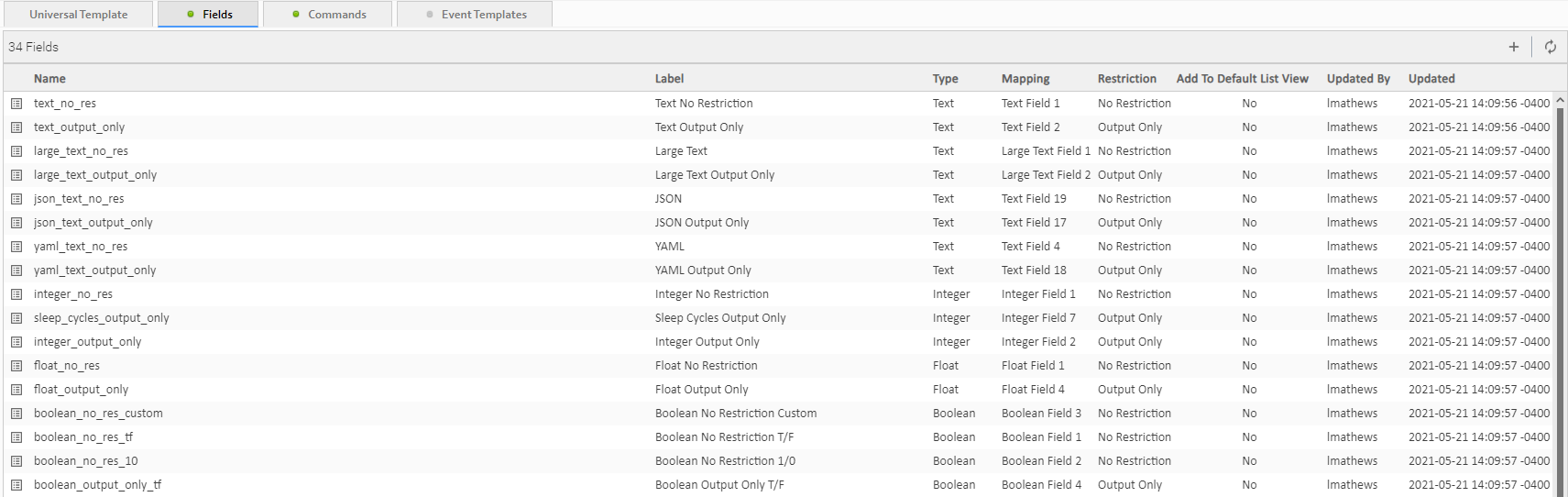

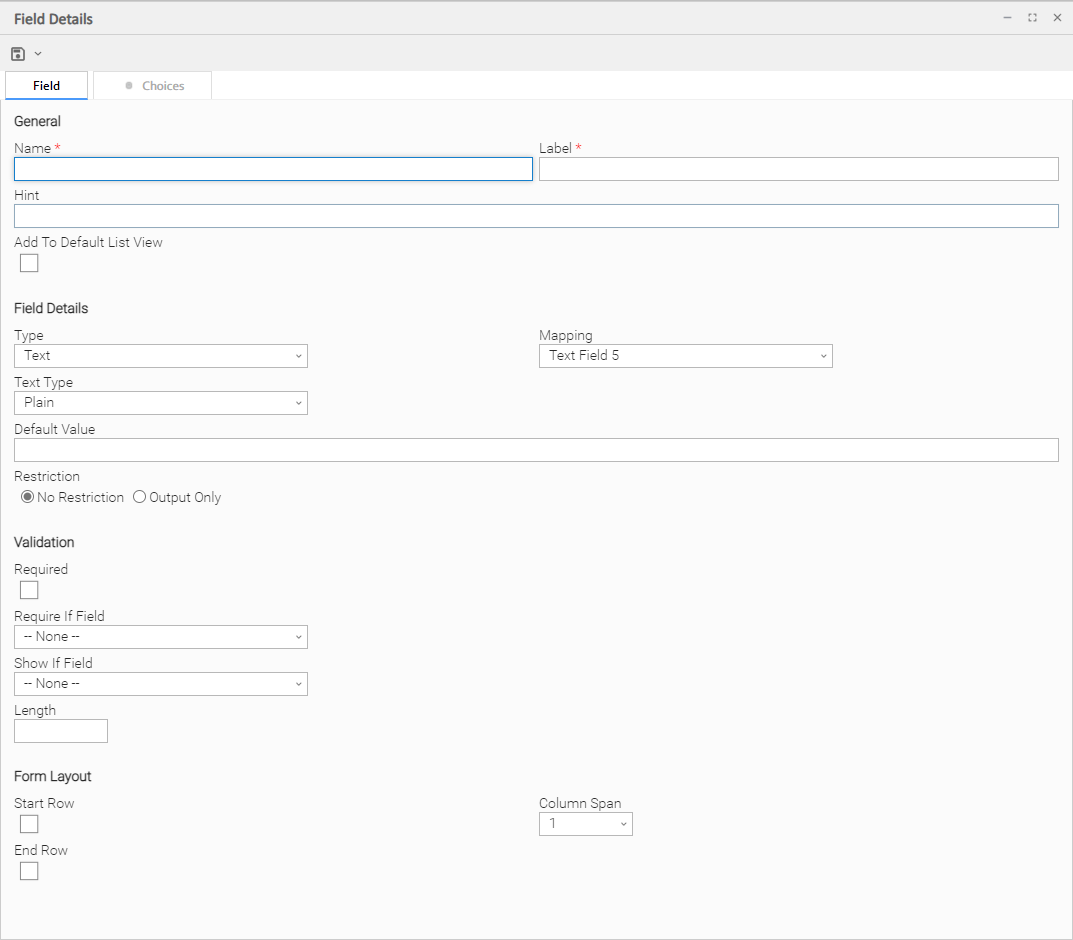

Field Details Field Descriptions
The following table describes the fields, buttons, and tabs that display in the Field Details.
|
Field Name |
Description |
||||||||||||
|---|---|---|---|---|---|---|---|---|---|---|---|---|---|
|
General |
This section contains general information about the Field. |
||||||||||||
|
Name |
Name of this Field in the Controller database. (Name is used as the suffix for the Universal Template Variable based on this Field.)
|
||||||||||||
|
Label |
Name of this Field to be displayed in the Controller user interface. |
||||||||||||
|
Hint |
Field hint for this Field in the Controller user interface. |
||||||||||||
|
Add To Default List View |
If enabled; Specification that the Label of this Field will display, by default, in the list of Universal Tasks based on this template. |
||||||||||||
|
Field Details |
This section contains detailed information about the Field. |
||||||||||||
|
Type |
Field type for this Field.
|
||||||||||||
| Text Type |
For Extension-based Universal Templates only; Content type of Text field:
|
||||||||||||
|
Restriction |
If Type is Text, Integer, or Boolean: Options:
|
||||||||||||
|
Mapping |
Field, from a pool of available fields provided for use in a Universal Template, that this Field is mapped to.
Note A field (from the pool of fields provided for use in a Universal Template) that is mapped to a Universal Template Field is not available to be mapped to any other Universal Template Field. |
||||||||||||
|
Default Value |
If Type is Text, Integer, Choice, or Float; Default value for this Field. (Text and Choice: Maximum length = 255; Large Text: Maximum Length = 25000, Integer: Maximum length = 11; Float: maximum length = 17.) Note Since only Resolvable Credentials can be embedded in a Universal Template script, only Resolvable Credentials display in the Default Value drop-down list for a Credential. If you click the Details icon to create a new Credential, Resolvable is pre-selected for the Type field in the Credential Details and cannot be changed. Note Since only Data Scripts can be embedded in a Universal Template script, only Data Scripts display in the Default Value drop-down list for a Script. If you click the Details icon to create a new Script, Data is pre-selected for the Type field in the Script Details and cannot be changed. If Type is SAP Connection; Default SAP Connection to be used for this Universal Template Field. You can select an SAP Connection from the Default Value drop-down list or click the Details icon next to the Default Value field to create a new SAP Connection. |
||||||||||||
|
Boolean Value Type |
If Type is Boolean: Type of Boolean value for this Field.
|
||||||||||||
|
Yes Value: |
If Boolean Value Type is Custom; Boolean Yes value for this Field. (Maximum length = 255 characters). |
||||||||||||
|
No Value: |
If Boolean Value Type is Custom; Boolean No value for this Field. (Maximum length = 255 characters). |
||||||||||||
|
Choice Sort Option |
If Type is Choice; Specification for how Choices will be listed in the Choice field drop-down list in the Universal Task Details.
Default is Sequence. |
||||||||||||
|
Allow Empty Choice |
If Type is Choice; Specification for whether or not an empty (blank) option is available for this Choice field in any Universal Task based on this template, allowing the user to clear the value of this field. |
||||||||||||
|
Allow Multiple Choices |
If Type is Choice; Specification for whether or not more than one choice can be selected at a time. When multiple choices are selected, the built-in field variable will resolve to a comma-delimited String of choice values. |
||||||||||||
|
Name Title |
If Type is Array; Option to change the default Name column for the Array field on any Universal Task based on this template to any other column title (for example, Customer Name). |
||||||||||||
|
Value Title |
If Type is Array; Option to change the default Value column for the Array field on any Universal Task based on this template to any other column title (for example, Customer ID). |
||||||||||||
|
Restriction |
If Type is Text, Integer, Boolean, or Float; Specification for whether or not to place an Output Only restriction on the field, which will render it as read-only on a Universal Task Instance Details but not shown on the Universal Task Details. | ||||||||||||
| Preserve Output On Re-run | If Restriction specifies Output Only; Specification for whether or not an Output Only field should preserve its value on a Re-run instead of being cleared. | ||||||||||||
| Extension Status |
If Restriction specifies Output Only; Specification for whether or not an Output Only field is designated as Extension Status for a task instance. Only a single field can be designated as an Extension Status. |
||||||||||||
|
Dynamic Choice |
If Type is Choice; Specification that the field will request its choices dynamically from the Extension. | ||||||||||||
| Dependent Fields | If Dynamic Choice is specified; Fields that should be included when requesting the dynamic choices. | ||||||||||||
|
Validation |
This section contains validation information about the Field. |
||||||||||||
|
Required |
If Type is Text, Integer, Credential, or Script; Specification for whether this Field in the template is required (checked) or optional (not checked). If it is required, it will display in boldface in any Universal Tasks based on this template. Note If you modify a Universal Template Field to add a Required condition, review and assign an appropriate field value to any Universal Tasks that are no longer in compliance to avoid a Start Failure. |
||||||||||||
|
Require If Field |
If Required is not checked and a Show If Field is not specified; Specification that this Field in the template will be required in any Universal Tasks based on this template if the Choice Field (Choice Field 1-15) or the Boolean Field (Boolean Field 1-10) selected as the Require If Field has a value corresponding to the value(s) defined in the Require If Field Value(s) field.
Note If you modify a Universal Template Field to add or augment a Require If Field condition, review and assign an appropriate field value to any Universal Tasks that are no longer in compliance to avoid a Start Failure. |
||||||||||||
|
Require If Field Value(s) |
If Require If Field is a Choice field, Require If Field Value(s) is a comma-separated list of Choice values.
|
||||||||||||
|
Show If Field |
If Required is not checked and a Require If Field is not specified; Specification that this Field in the template will be visible in any Universal Tasks based on this template if the Choice Field (Choice Field 1-15) or the Boolean Field (Boolean Field 1-10) selected as the Show If Field has a value corresponding to the value(s) defined in the Show If Field Value(s) field.
|
||||||||||||
|
Show If Field Value(s) |
If Show If Field is a Choice field, the Show If Field Value(s) is a comma-separated list of Choice values. For example:
|
||||||||||||
|
Require If Visible |
If Show If Field is not - - None - -; If selected, specification that the Field is required if it is visible (see Show If Field). Note If you modify a Universal Template Field to add a Require If Visible condition, review and assign an appropriate field value to any Universal Tasks that are no longer in compliance to avoid a Start Failure. |
||||||||||||
|
No Space If Hidden |
If Show If Field is not - - None - -; If selected, specification that a space should not be reserved in place of the hidden field. |
||||||||||||
|
Preserve Value If Hidden |
If Show If Field is not - - None - -; If selected, specification that the value of this field should be preserved if the field is hidden. Note A Field with Preserve Value If Hidden = true will be validated even if the Field is hidden. Also, if a Field's Show If Field or Require If Field specifies a field (for example, Boolean Field 1) that has Preserve Value If Hidden = true, when validating whether the Field is visible or required, Boolean Field 1’s value is considered visible. |
||||||||||||
|
Length |
If Type is Text or Integer; Length of this Field.
|
||||||||||||
|
Minimum |
If Type is Integer; Minimum value for this field. |
||||||||||||
|
Maximum |
If Type is Integer; Maximum value for this field. |
||||||||||||
|
Form Layout |
This section contains information about the location of this Field in the Details of Universal Tasks based on this template. Note All user-defined Fields in a Universal Template will be located between the Credentials Variable and Runtime Directory fields in the Details section of Universal Tasks based on this template. |
||||||||||||
|
Start Row |
If enabled; Specification that this Field will start a new row. |
||||||||||||
|
End Row |
If enabled; Specification that this Field will end the current row. |
||||||||||||
|
Column Span |
Number of columns (width) in the Universal Task Details for this Field.
Default is 1. |
||||||||||||
|
Sequence |
For existing Fields only; System-defined; Sequence of this Field among all user-defined Universal Template Fields to be displayed in the Universal Task Details. Starting sequence is 0 for the first defined Field. Note You can change the Sequence of user-defined Universal Template Fields by dragging them to new locations on the Fields list. |
||||||||||||
|
Metadata |
This section contains Metadata information about this record. |
||||||||||||
|
UUID |
Universally Unique Identifier of this record. |
||||||||||||
|
Updated By |
Name of the user that last updated this record. |
||||||||||||
|
Updated |
Date and time that this record was last updated. |
||||||||||||
|
Created By |
Name of the user that created this record. |
||||||||||||
|
Created |
Date and time that this record was created. |
||||||||||||
|
Buttons |
This section identifies the buttons displayed above and below the Field Details that let you perform various actions. |
||||||||||||
|
Save |
Saves a new Field record in the Controller database. |
||||||||||||
|
Save & New |
Saves a new Field record in the Controller database and redisplays empty Details so that you can create another Field. |
||||||||||||
|
Save & View |
Saves a new Field record in the Controller database and continues to display that record. |
||||||||||||
|
New |
Displays empty (except for default values) Details for creating a new Field. |
||||||||||||
|
Update |
Updates the Field record in the Controller database. |
||||||||||||
|
Delete |
Delete the currently open Field. Note You cannot delete a field if it is the only field in the Template. |
||||||||||||
|
Refresh |
Refreshes any dynamic data displayed in the Field Details. |
||||||||||||
|
Close |
Closes the Field Details. |
||||||||||||
|
Tabs |
This section identifies the tabs across the top of the Field Details that provide access to additional information about the Field. |
||||||||||||
|
Choices |
If Type is Choice; Allows you to define the Choices for this Field in the template. |
||||||||||||
Creating Universal Template Field Choices
If you created a Choice Field (Type = Choice) for a Universal Template, you must create Choices for that Choice Field that will display in a drop-down list in all Universal Tasks based on this Universal Template.
- If you click the Save button after creating the Choice Field, the Choices tab (under which is an empty Choices list) is enabled, and an empty Choice Details automatically displays, which lets you create your first Choice.
- If you click the Save & New button after creating a Choice Field, so that you can immediately create one or more other Fields, you will have to manually open that Choice Field, click the enabled Choices tab, and then click the New button to create your first Choice.
The following procedure assumes that you have created a Choice Field but not yet created any Choices for it.
|
Step 1 |
On the Fields list for the Universal Template, open the Choice Field (Type = Choice) whose Choices you want to create. |
|---|---|
|
Step 2 |
Click the Choices tab to display an empty Choices list. |
|
Step 3 |
Click New to display Choice Details for a new Choice. |
|
Step 4 |
Enter Details for a new Choice Field, using the field descriptions below as a guide. |
|
Step 5 |
Click a Save button. Each Choice that you define is added to the Choices list. |
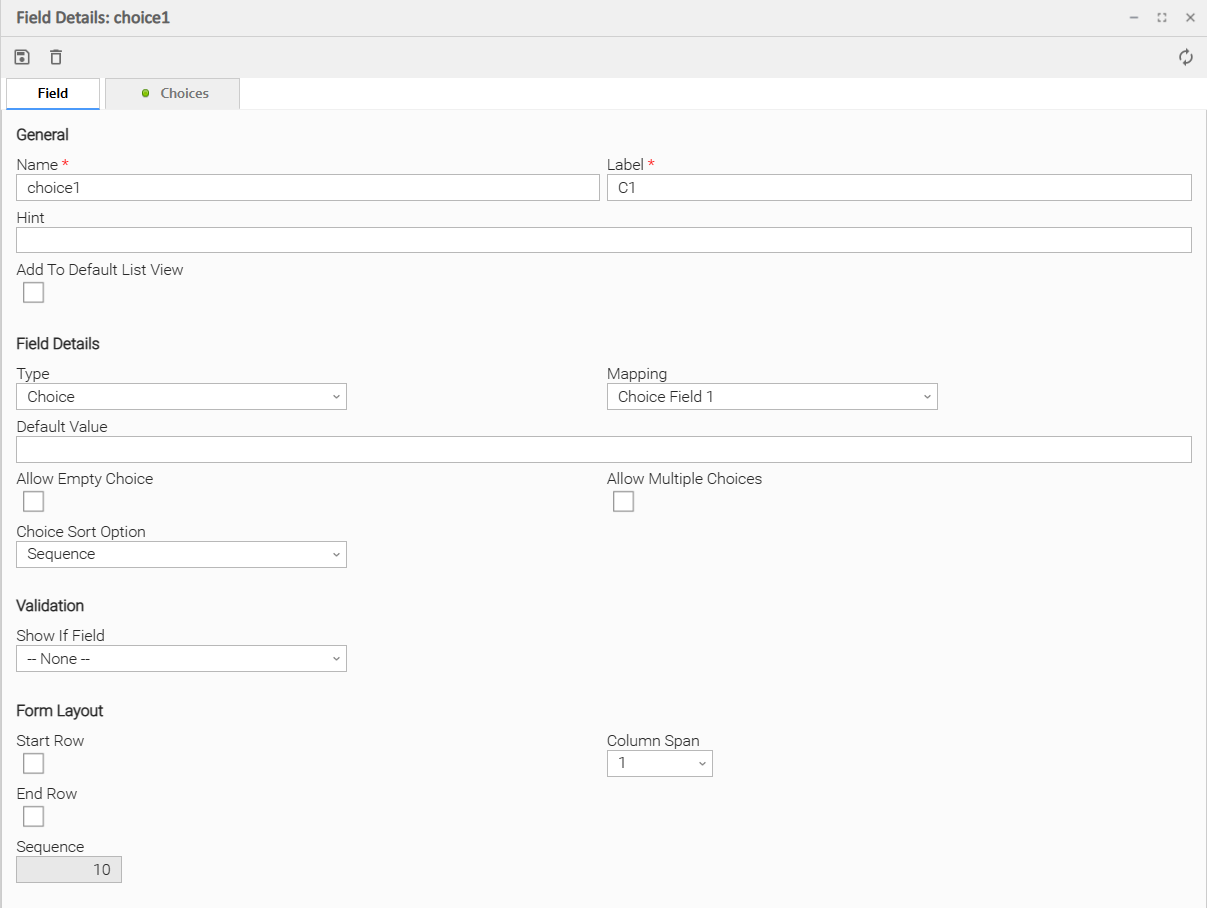
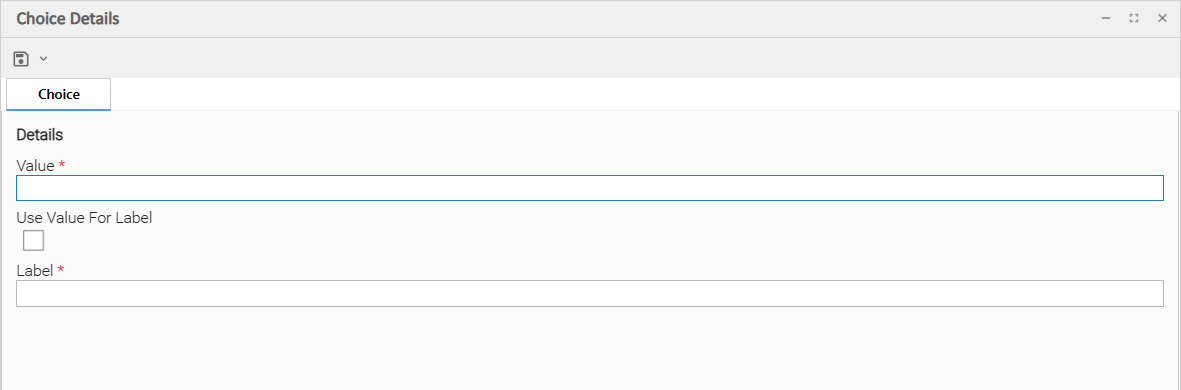
Choice Details Field Descriptions
The following table describes the fields, buttons, and tabs that display in the Choice Details.
|
Field Name |
Description |
|---|---|
|
General |
This section contains general information about the Field. |
|
Value |
Value of this Choice. (Maximum length = 255 characters.) |
|
Use Value For Label |
If the Value field value is 50 characters or less; Use the Value field value as the Label field value (which is a maximum 50 characters). |
|
Label |
If Use Value For Label is not checked; Name that will display for this Choice in the drop-down list on a Universal Task. (Maximum = 50 characters.) |
|
Sequence |
For existing Choices only; System-defined sequence of this Choice among all Choices defined for this Field. Starting sequence is 0 for the first defined Choice. Note If you select Sequence in the Choice Sort Option field in the Details for this Choice Field, you can sort the Choices by clicking and dragging them to any position on the Choices List. |
|
Metadata |
This section contains Metadata information about this record. |
|
UUID |
Universally Unique Identifier of this record. |
|
Updated By |
Name of the user that last updated this record. |
|
Updated |
Date and time that this record was last updated. |
|
Created By |
Name of the user that created this record. |
|
Created |
Date and time that this record was created. |
|
Buttons |
This section identifies the buttons displayed above the Choice Details that let you perform various actions. |
|
Save |
Saves a new Choice record in the Controller database. |
|
Save & New |
Saves a new Choice record in the Controller database and redisplays empty Details so that you can create another Choice. |
|
Save & View |
Saves a new Choice record in the Controller database and continues to display that record. |
|
New |
Displays empty (except for default values) Details for creating a new Choice. |
|
Update |
Updates the Choice record in the Controller database. |
|
Delete |
Deletes the currently open Choice. Note You cannot delete a Choice if it is the only Choice for the Field. |
|
Refresh |
Refreshes any dynamic data displayed in the Choice Details. |
|
Close |
Closes the Choice Details. |
Creating Commands
Commands allow you to define additional operations against a task instance.
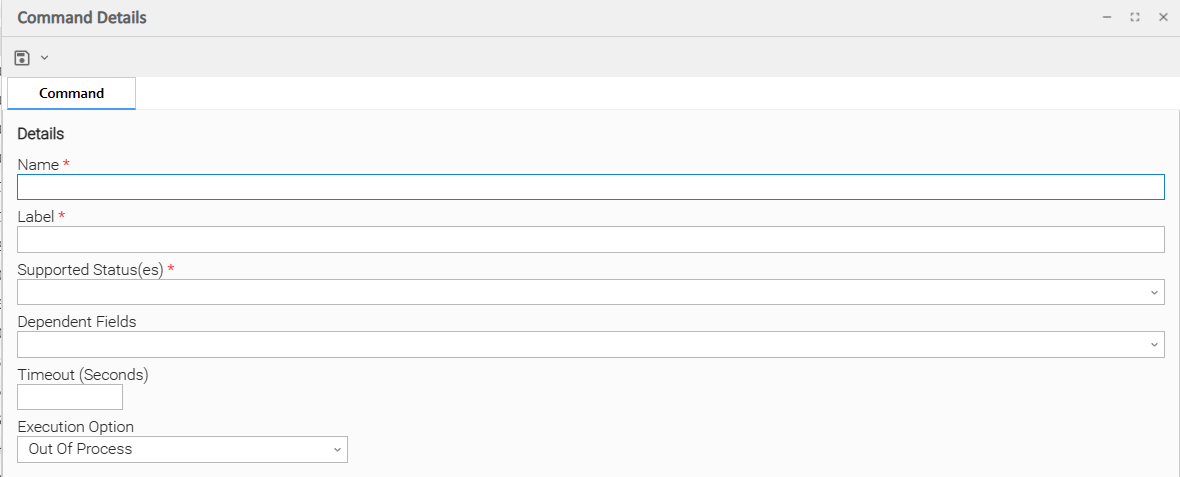
Command Details Field Descriptions
The following table describes the fields and buttons that display in the Command Details.
|
Field Name |
Description |
|---|---|
|
Name |
Unique name of this command, adhering to the same naming convention as a Universal Template field name. |
|
Label |
User-friendly display name for the command, to be displayed within the client. |
|
Supported Status(es) |
Task instance status(es) that the dynamic command should be enabled for. |
|
Dependent Fields |
Universal Template fields (if any) that are required by the command. The values of those fields are included in the command request. |
|
Timeout (Seconds) |
Optional command timeout, in seconds, if the command requires longer than the System-level default of 60 seconds. If the Controller (server) does not receive a command response from the Extension prior to the timeout being reached, a timeout message will be sent to the client (user interface), and displayed in the console. However, the server-side handling of the command response, like the persistence of command output, will still be handled by the server after the timeout occurs. |
|
Execution Option |
Specification for whether the command runs out-of-process execution or in-process execution. Options:
Default is Out Of Process. |
|
Asynchronous |
If Execution Option is In Process; Specification for whether the command runs synchronously or asynchronously. |
| Buttons |
This section identifies the buttons displayed above and below the Field Details that let you perform various actions. |
| Save | Saves a new Field record in the Controller database. |
| Save & New | Saves a new Field record in the Controller database and redisplays empty Details so that you can create another Field. |
| Save & View | Saves a new Field record in the Controller database and continues to display that record. |
| Close | Close the Command Details. |
Command Permission
Users must have Universal (or ALL) command permission and Read permission for the Universal Task Instance, assigned by the Task Instance permission type, for authorization to execute a Universal dynamic command.
Command Output
Optionally, a dynamic command can return output in the response, which would be displayed immediately to the user who issued the command.
A user can view the output generated by the command later by going to the Task Instance > Output tab.
The Type will show as COMMAND, and to allow for better correlation, a new Command Name field will display the label of the command that generated the output.
Creating Event Templates
Universal Events are administrator-defined events with administrator-defined attributes.
Universal Events can be defined:
| Globally |
In a Universal Event Template. |
| Locally | As part of a Universal Extension-based Universal Template. |
If the Universal Extension can generate a non-global Universal Event, you must define the Universal Event here to allow the event to be monitored by an Universal Monitor.
Note
When publishing Universal Events through an Extension-based Universal Task Publisher, take into consideration both Universal Controller server and Database server sizings.
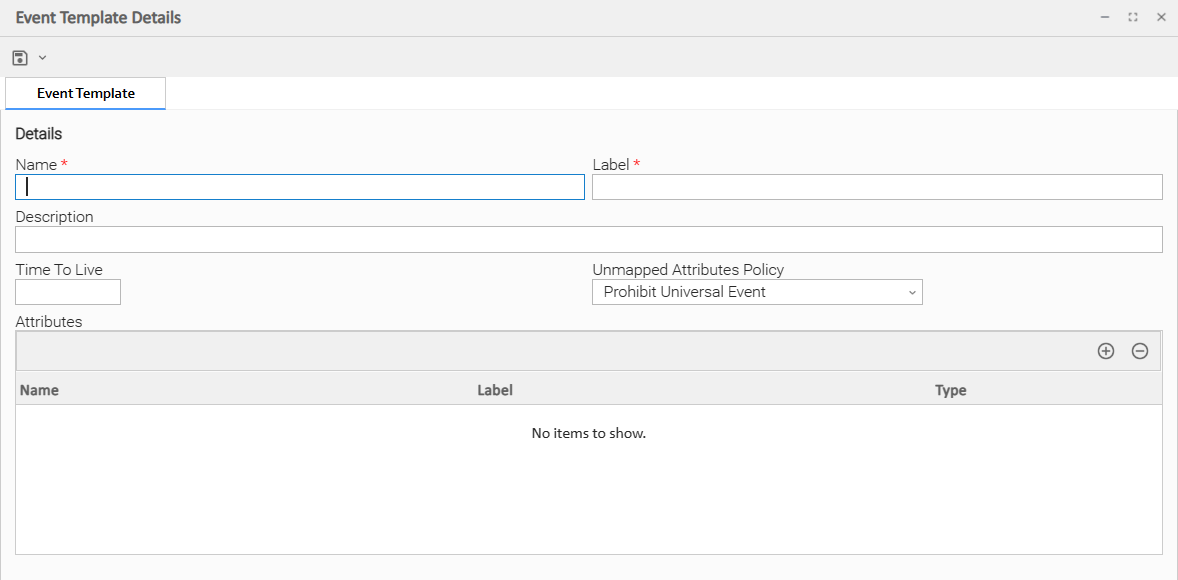
Event Template Details Field Descriptions
The following table describes the fields and buttons that display in the Event Template Details.
|
Field Name |
Description |
|---|---|
|
Name |
Name of this Universal Event. |
|
Label |
User-friendly display name for this event, to be displayed within the client. The Label must be unique for Global Events and unique within Local Events.. |
|
Description |
Description of this event. |
| Time To Live |
Default value for the length of time, in minutes, that the Universal Event data is valid. This value can be unspecified (null). The Time To Live value can be overridden in the published event. If the Time To Live does not exist in the published event, then this value, if defined, will be used. If neither value exists, the Time To Live is 0, which means the event is deleted as soon as it is published. |
| Unmapped Attributes Policy |
Defines how unmapped/unknown attributes that are in the published event are handled.
|
| Attributes |
Name, Label, and Type of each attribute.
|
| System Event | Indication if this type of event is a System Event. |
Auditing Universal Events
The Universal Event Extension Publish Audit lets you specify whether or not an audit record is generated for each Universal Event published through an Extension-based Universal Task Instance.
(The Universal Event Web Service Publish Audit lets you specify whether or not an audit record is generated for each Universal Event published through the Universal Event Web Services.)
Note
Enabling these audit properties can generate a large quantity of audit.