Creating a Universal Task
- Former user (Deleted)
- Stonebranch (Deactivated)
Before You Begin
Universal Task allows you to run a platform-specific application on a Linux/Unix or Windows machine. To run a Universal task, you must first complete the following tasks:
- Install Universal Agent for Linux/Unix on a Linux/Unix machine and/or install Universal Agent for Windows on a Windows machine.
- Launch the Agent(s). When an Agent connects with the Controller, it automatically creates an Agent resource definition in the database.
- Optionally, customize the Agent heartbeat and log levels, as described in:
Built-In Variables
In addition to the system-assigned variables in the Universal Template script that a Universal task executes, the following built-in variables can be used in a Universal task to pass data where appropriate:
Creating a Universal Task
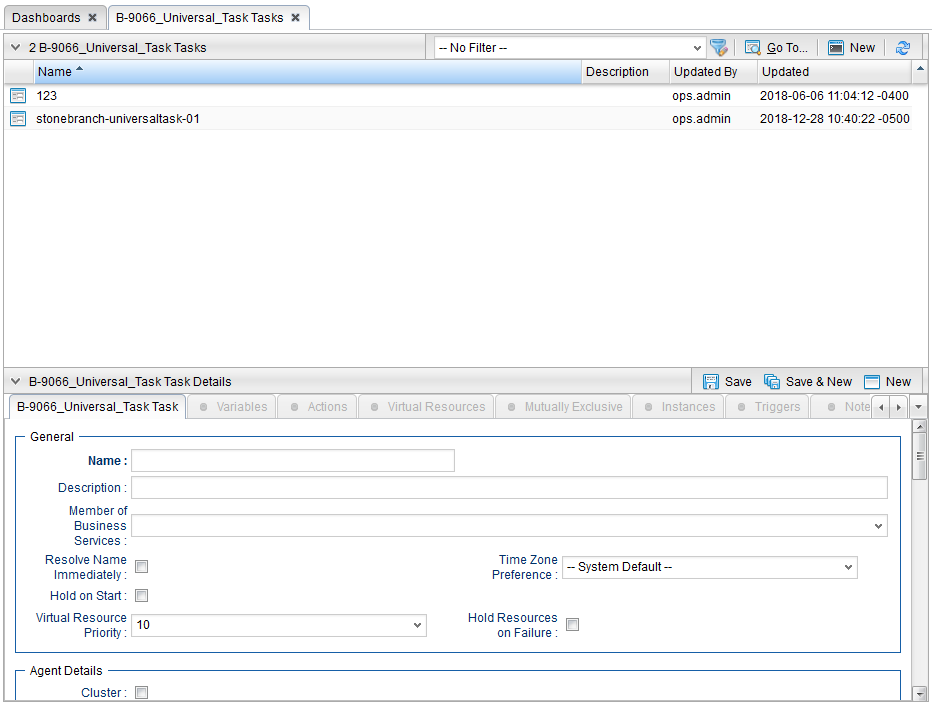
Step 1 | From the Universal Tasks section of the Automation Center navigation pane, select a Universal Task type. The Universal Tasks list for that Universal Task type displays. |
|---|---|
Step 2 | Enter / select Details for a new Universal Task, using the field descriptions below as a guide.
To display more of the Details fields on the screen, you can either:
|
Step 3 | Click a Save button. The task is added to the database, and all buttons and tabs in the Universal Task Details are enabled. |
Note
To open an existing record on the list, either:
- Click a record in the list to display its record Details below the list. (To clear record Details below the list, click the New button that displays above and below the Details.)
- Clicking the Details icon next to a record name in the list, or right-click a record in the list and then click Open in the Action menu that displays, to display a pop-up version of the record Details.
- Right-click a record in the a list, or open a record and right-click in the record Details, and then click Open In Tab in the Action menu that displays, to display the record Details under a new tab on the record list page (see Record Details as Tabs).
Universal Task Details
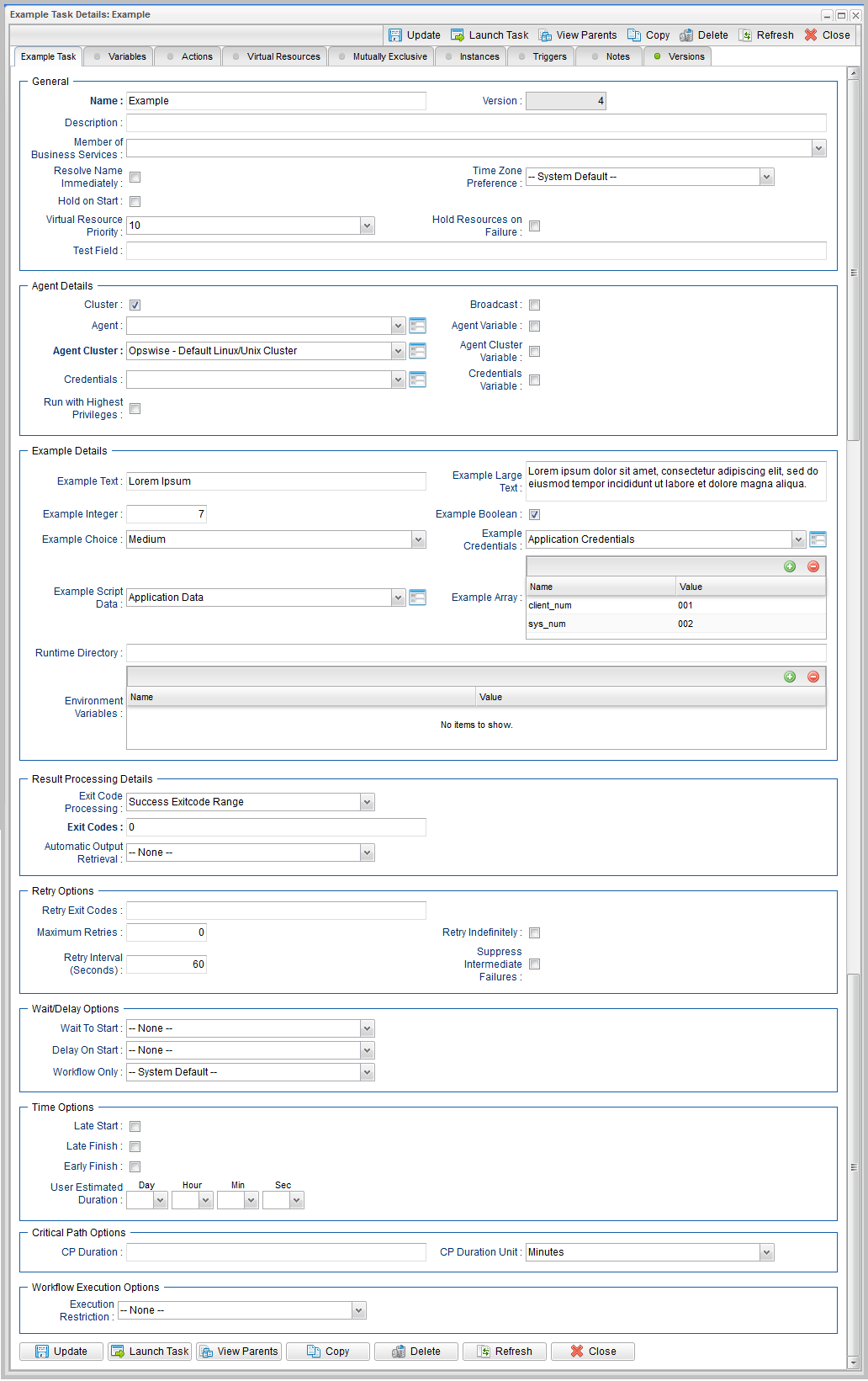
The following Universal Task Details is for an existing Universal task.
Depending on the values that you enter / select for these fields, and whether or not the Universal Task has ever been launched, more (or less) fields may display. See the field descriptions, below, for a description of all fields that may display in the Universal Task Details.
Universal Task Details Field Descriptions
The following table describes the fields, buttons, and tabs that display in the Universal Task Details.
Field Name | Description | ||||||||||
|---|---|---|---|---|---|---|---|---|---|---|---|
General | This section contains general information about the task. | ||||||||||
Name | User-defined name of this task (Maximum = 255 alphanumeric characters); variables supported. It is the responsibility of the user to develop a workable naming scheme for tasks. | ||||||||||
Version | System-supplied; version number of the current record, which is incremented by the Controller every time a user updates a record. Click the Versions tab to view previous versions. For details, see Record Versioning. | ||||||||||
Description | Description of this record. Maximum length is 255 characters. | ||||||||||
Member of Business Services | User-defined; Allows you to select one or more Business Services that this record belongs to. (You also can Check All or Uncheck All Business Services for this record.) You can select up to 62 Business Services for any record type, and enter a maximum of 2048 characters for each Business Service. If the Business Service Visibility Restricted Universal Controller system property is set to true, depending on your assigned (or inherited) Permissions or Roles, Business Services available for selection may be restricted. | ||||||||||
Resolve Name Immediately | If enabled, the Instance Name of the task instance will be resolved immediately at trigger/launch time. | ||||||||||
Time Zone Preference | User-defined; Allows you to specify the time zone that will be applied to the task. Options:
| ||||||||||
Hold on Start | If enabled, when the task is launched it appears in the Activity Monitor with a status of Held. The task runs when the user releases it. | ||||||||||
Hold Reason |
Information about why the task will be put on hold when it starts. | ||||||||||
Virtual Resource Priority | Priority for acquiring a resource when two or more tasks are waiting for the resource. This priority applies to all resources required by the task. Options: 1 (high) - 100 (low). Default is 10. | ||||||||||
Hold Resources on Failure |
If enabled, the task instance will continue to hold Renewable resources if the task instance fails. Renewable resources will be returned only if the task instance status is either Complete, Finished, or Skipped. | ||||||||||
Agent Details | This section contains assorted detailed information about the Agent. | ||||||||||
Agent | Name of the Agent resource that identifies the machine where the operation will run. If you do not specify an Agent, you must specify an Agent Cluster. | ||||||||||
Agent Cluster | If Cluster is selected and Broadcast is not selected; Group of Agents, one of which the Controller will choose to run this task (compare with Cluster Broadcast). You can specify an agent cluster in addition to or in place of a specific Agent. If you specify an Agent and an agent cluster, the Controller first tries to run the task on the specific agent. If the Agent is not available, the Controller reverts to the agent cluster. See Agent Clusters for more information. | ||||||||||
Agent Variable | Indication of whether the Agent field is a reference field for selecting a specific Agent (unchecked) or a text field for specifying the Agent as a variable (checked). Use the format: ${variable name}. The variable must be a supported type as described in Variables and Functions. Note When updating multiple Tasks, to change from using an Agent reference to using an Agent variable, you must change the Agent Variable field to Yes and specify the Agent variable in the Agent Unresolved field. Conversely, to change from using an Agent variable to using an Agent reference, you must change the Agent Variable field to No and specify the Agent reference in the Agent field. | ||||||||||
Agent Cluster Variable | Indication of whether the Agent Cluster field is a reference field for selecting a specific Agent Cluster (unchecked) or a text field for specifying the Agent Cluster as a variable (checked). Use the format: The variable must be a supported type as described in Variables and Functions. Note When updating multiple Tasks, to change from using an Agent Cluster reference to using an Agent Cluster variable, you must change the Agent Cluster Variable field to Yes and specify the Agent Cluster variable in the Agent Cluster Unresolved field. Conversely, to change from using an Agent Cluster variable to using an Agent Cluster reference, you must change the Agent Cluster Variable field to No and specify the Agent Cluster reference in the Agent Cluster field. | ||||||||||
Credentials | Credentials under which an Agent runs this task. These Credentials override any Credentials provided in the Agent Details for any Agent running this task. If the user does not have a login shell, add a - character in front of the runtime credentials name. The Controller will provide a shell for that user and strip the - character from the name. Required if the Agent Credentials Required Universal Controller system property is true. When required, if the Credential is specified as a variable, and the variable resolves to blank, a Start Failure will occur. | ||||||||||
Credentials Variable | Indication of whether the Credentials field is a reference field for selecting a specific Credential (unchecked) or a text field for specifying the Credential as a variable (checked). Use the format: The variable must be a supported type as described in Variables and Functions. Note When updating multiple Tasks, to change from using a Credentials reference to using a Credentials variable, you must change the Credentials Variable field to Yes and specify the Credentials variable in the Credentials Unresolved field. Conversely, to change from using a Credentials variable to using a Credentials reference, you must change the Credentials Variable field to No and specify the Credentials reference in the Credentials field. | ||||||||||
Cluster Broadcast | Group of Agents, all of which will run this task (compare with Agent Cluster). If Broadcast is selected for a task, you must select a Cluster Broadcast instead of a specific Agent and/or agent cluster. Each instance of the task running on its own Agent becomes a separate task instance record in the database and displays separately on the Activity Monitor. | ||||||||||
Cluster Broadcast Variable | Indication of whether the Cluster Broadcast field is a reference field for selecting a specific Cluster Broadcast (unchecked) or a text field for specifying the Cluster Broadcast as a variable (checked). Use the format: ${variable name}. The variable must be a supported type as described in Variables and Functions. Note When updating multiple Tasks, to change from using a Cluster Broadcast reference to using a Cluster Broadcast variable, you must change the Cluster Broadcast Variable field to Yes and specify the Cluster Broadcast variable in the Cluster Broadcast Unresolved field. Conversely, to change from using a Cluster Broadcast variable to using a Cluster Broadcast reference, you must change the Cluster Broadcast Variable field to No and specify the Cluster Broadcast reference in the Cluster Broadcast field. | ||||||||||
Run with Highest Privileges | For Windows Agents; Execute the task using an elevated privileges token, rather than one subject to User Account Control (UAC) restrictions. An elevated token allows a process to execute with all the privileges available to its specified credentials. For example, a task executed with an administrative account will behave as though it received permission via a UAC dialog to perform a privileged operation. Note This option only will affect tasks executed on Windows systems that support User Account Control (UAC). It will have no affect on tasks run on Windows releases prior to Vista (for example, Windows XP, Server 2003). | ||||||||||
Universal Task Details | This section contains assorted detailed information about the Agent. Note The fields in this section may have Read Only or Hidden restrictions applied to them, as specified in the Universal Template on which the Universal Task is based. | ||||||||||
(user-defined fields) | The Details for each Universal Task contains any editable fields that were created in the Universal Template on which the Universal Task type for that Universal Task is based. System-assigned variables that match these fields are provided for inclusion in the template script. When the task is run, it executes the script, and the variables are resolved to the values of their matching values in the task. There are eight types of user-defined fields that can appear in the Details of a Universal Task:
For each type of field, default values, format, and/or limitations are specified in the Universal Template. In any Universal Task based on that Universal Template, you can override and/or define values - within the specified format and limitations - for those fields.
| ||||||||||
Runtime Directory |
| ||||||||||
Environment Variables |
Allows you to enter environment variables needed by the program to run. To add a variable, click the + icon and enter a Name and Value. To delete a variable, select in the list of variables and click the - icon. You can add a maximum of 4,000 characters for the combined Names and Values of all variables. The variable is listed in the space underneath. | ||||||||||
| Result Processing Details | This section contains assorted detailed information about result processing for this task. | ||||||||||
Exit Code Processing | Specifies how the Controller should determine whether the executed command failed or completed successfully. Options:
| ||||||||||
Output Type | Required if Exit Code Processing = Success Output Contains or Failure Output Contains; type of output. Options:
| ||||||||||
Content Type | If Output Type is Extension; Output type that the Result Processing mechanism should assume when evaluating the output. If the expected output is XML or JSON, it is valid to specify Text. However, when specifying XML or JSON, the output must be XML or JSON respectively; otherwise, the parsing will fail and the path expression evaluation will return no matches. | ||||||||||
Path Expression | XPath Expression if Content Type is XML, or the JsonPath Expression if Content Type is JSON, to be used when evaluating the Extension output. | ||||||||||
Operator | If Output Type is Extension; Condition Operator to evaluate in combination with the specified condition Value. | ||||||||||
Value | If Output Type is Extension; Condition Value to evaluate in combination with the specified condition Operator. | ||||||||||
Strategy | If Content Type is XML or JSON; Strategy to take when applying the condition Operator and Value against the Path Expression matches when Content Type is XML or JSON. | ||||||||||
Auto Cleanup | Enables the auto cleanup of Extension output upon task instance completion or, if the task instance is within a workflow, when the top level workflow instance completes. | ||||||||||
Scan Output For | Required if Exit Code Processing = Success Output Contains or Failure Output Contains; text for which the Controller should scan the output file. The Controller will process this field as a regular expression. | ||||||||||
Output File (for Exit Code Processing) | Required if Output Type = File; path and file name of the output file that should be scanned for the text in the Scan Output For field. | ||||||||||
Exit Codes | Required if Exit Code Processing = Success Exitcode Range or Failure Exitcode Range; range of exit codes. Format: Numeric. Use commas to list a series of exit codes; use hyphens to specify a range. Example: 1,5, 22-30. Variables are supported. | ||||||||||
Automatic Output Retrieval |
Specifies whether you want the Controller to automatically retrieve any output from the job and attach it to the task instance record. Options:
Note Tasks specifying Automatic Output Retrieval will fail with Start Failure if the Agent Output Prohibited field is true in the Details of the specified Agent. | ||||||||||
Wait For Output | If Automatic Output Retrieval = Standard Output, Standard Error, File, or Standard Output/Error, and Failure Only is not enabled (checked); Specification that the task should wait for the requested output before completing. | ||||||||||
Failure Only | If Automatic Output Retrieval = Standard Output, Standard Error, File, or Standard Output/Error, and Wait For Output is not enabled (checked); Indication for whether output should be retrieved on task failure only. | ||||||||||
Start Line | If Automatic Output Retrieval = Standard Output, Standard Error, File, or Standard Output/Error; Instructs the Controller to retrieve data beginning at the line indicated.
| ||||||||||
Number of Lines | If Automatic Output Retrieval = Standard Output, Standard Error, File, or Standard Output/Error; Allows you to limit the retrieved data to the number of lines specified. If a Number of Lines value is not specified, the default is the value of the Retrieve Output Default Number Of Lines Universal Controller system property. | ||||||||||
Scan Text | If Automatic Output Retrieval = Standard Output, Standard Error, File, or Standard Output/Error; Regex pattern that the Controller will search for a match for in STDOUT/STDERR or a specified file. The Controller will include the Number of Lines above and below the first line matched. | ||||||||||
Output File (for Automatic Output Retrieval) | Required if Automatic Output Retrieval = File; path and file name containing the output that you want automatically retrieved and attached to the task instance. | ||||||||||
Retry Options | This section contains specifications for retrying the task. | ||||||||||
Retry Exit Codes |
Exit code range for which an auto-retry of tasks in FAILED status will occur. Exit code ranges must be in the same format as ranges specified in the Exit Codes field. Maximum Retries must be greater than 0. If this field is empty, any exit code potentially will cause a retry. Variables are supported. | ||||||||||
Maximum Retries |
User-defined; maximum number of times that the Controller should retry this task after it has started and gone to a failed state. | ||||||||||
Retry Indefinitely | User-defined; indicates whether the Controller should continue trying indefinitely to run this task. If you enable this field, it overrides any value placed in the Maximum Retries field. | ||||||||||
Retry Interval (Seconds) |
User-defined; number of seconds between each retry. | ||||||||||
Suppress Intermediate Failures | User-defined; If the task instance is in the Failed status, indicates whether or not the following will be suppressed until all scheduled retry attempts (a Maximum Retries value has been entered or Retry Indefinitely has been enabled) have been made:
| ||||||||||
Wait / Delay Options | This section contains specifications for waiting to start and/or delaying on start the task. | ||||||||||
Wait To Start |
Amount of time to wait before starting a task from the time that it was launched.
| ||||||||||
Wait Time | If Wait To Start = Time or Relative Time; Time of day (in 24-hour time) to wait until before starting the task. | ||||||||||
Wait Day Constraint | If Wait To Start = Time or Relative Time; Specification for whether or not to advance the wait time to another day. Valid values:
Default is – None --. | ||||||||||
Wait Duration | If Wait To Start = Duration; Number of days, hours, minutes, and seconds to wait before starting the task. | ||||||||||
Wait Duration In Seconds | If Wait To Start = Seconds; Number of seconds to wait before starting the task. | ||||||||||
Delay On Start |
Amount of time to delay the start of a task, after it has been launched, from the time that it is eligible to start; that is, all dependencies have been met. For example: it is not being held, it is not waiting on any predecessors, or there is no wait time specified.
| ||||||||||
Delay Duration | If Delay On Start = Duration; Number of days, hours, minutes, and seconds to delay after starting the task. | ||||||||||
Delay Duration In Seconds | If Delay On Start = Seconds; Number of seconds to delay after starting the task. | ||||||||||
Workflow Only | Specification for whether or not to apply the Wait To Start and Delay On Start specifications only if the task is in a Workflow.
| ||||||||||
Time Options | This section contains time-related specifications for the task. | ||||||||||
Late Start | If enabled, and if the task instance starts after the time or period specified, the task instance is flagged as late. You can specify a time or duration to determine a late start (see Late Start Type). To determine whether a task instance started late, open the task instance and locate the Started Late field; the field is checked if the instance started after the specified time. The Started Late field displays in the task instance Details only if the user specified a Late Start in the task Details. | ||||||||||
Late Start Type | Required if Late Start is enabled. Options:
| ||||||||||
Late Start Time | If Late Start Type = Time; Time after which the task start time is considered late. Use HH:MM, 24-hour time. | ||||||||||
Late Start Day Constraint | If Late Start Type = Time; Specification for whether or not to advance the late start time to another day.
Default is – None --. | ||||||||||
Late Start Nth Amount | If Late Start Day Constraint = Nth Day; Number of days to advance. | ||||||||||
Late Start Duration | If Late Start Type = Duration; Duration (amount of relative time) after which the task is considered to have started late. For a task within a workflow, the duration is the period between the time the workflow starts and the time the task itself starts. For example, a task might have a Late Start Duration of 60 minutes. If the workflow starts at 9:00 a.m. but the task itself does not start until 10:30, the task has started late. For a task that is not within a workflow, Late Start Duration has meaning only if the task has been held upon starting. For example, if a task has a Late Start Duration of 60 minutes and the Hold on Start field is enabled, if the task is not released from hold within the amount of time specified in the Late Start Duration field, the task has started late. | ||||||||||
Late Finish | If enabled, and if the task instance finishes after the time or period specified, the task instance is flagged as late. You can specify a time or duration to determine a late finish (see Late Finish Type). To determine whether a task instance finished late, open the task instance and locate the Finished Late field; the field is checked if the instance finished after the specified time or lasted longer than expected. This field only appears on the task instance if the user specified a Late Finish in the task definition. | ||||||||||
Late Finish Type | Required if Late Finish is enabled. Options:
| ||||||||||
Late Finish Offset Type | |||||||||||
Late Finish Percentage Offset ( + ) | Required if Late Finish Offset Type = Percentage; Percentage of Average Duration to use as an offset. The late finish time is calculated by adding the offset to the Average Duration. | ||||||||||
Late Finish Duration Offset ( + ) | Required if Late Finish Offset Type = Duration; Duration to use as an offset. The late finish time is calculated by adding the offset to the Average Duration. | ||||||||||
Late Finish Duration Offset Unit | |||||||||||
Late Finish Time | If Late Finish Type = Time; Time after which the task finish time is considered late. Use HH:MM, 24-hour time. | ||||||||||
Late Finish Day Constraint | If Late Finish Type = Time; Specification for whether or not to advance the late finish time to another day.
Default is – None --. | ||||||||||
Late Finish Nth Amount | If Late Finish Day Constraint = Nth Day; Number of days to advance. | ||||||||||
Late Finish Duration | If Late Finish Type = Duration; Longest amount of time this task instance should take to run. | ||||||||||
Early Finish | If enabled, and if the task instance finishes before the time or period specified, the task instance is flagged as early. You can specify a time or duration to determine an early finish (see Early Finish Type). To determine whether a task instance finished early, open the task instance and locate the Finished Early field; the field is checked if the instance finished before the specified time or did not last as long as expected. This field only appears on the task instance if the user added Early Finish specifications to the task definition. | ||||||||||
Early Finish Type | Required if Early Finish is enabled. Options:
| ||||||||||
Early Finish Offset Type | |||||||||||
Early Finish Percentage Offset ( - ) | Required if Early Finish Offset Type = Percentage; Percentage of Average Duration to use as an offset. The early finish time is calculated by subtracting the offset from the Average Duration. | ||||||||||
Early Finish Duration Offset ( - ) | Required if Early Finish Offset Type = Duration; Duration to use as an offset. The early finish time is calculated by subtracting the offset from the Average Duration. | ||||||||||
Early Finish Duration Offset Unit | |||||||||||
Early Finish Time | If Early Finish Type = Time; Time before which the task finish time is considered early. That is, enter a time at which the task should still be running. Use HH:MM, 24-hour time. | ||||||||||
Early Finish Day Constraint | If Early Finish Type = Time; Specification for whether or not to advance the early finish time to another day.
Default is – None --. | ||||||||||
Early Finish Nth Amount | If Early Finish Day Constraint = Nth Day; Number of days to advance. | ||||||||||
Early Finish Duration | If Early Finish Type = Duration; Shortest amount of time this task instance should take to run. | ||||||||||
User Estimated Duration | Required if Early Finish Type or Late Finish Type = Average Duration; Estimated amount of time it should normally take to run this task. The Controller uses this information to calculate the User Estimated End Time on a task instance record. User Estimated Duration is used when the Average Duration is not available; for example, on the first launch of a task. | ||||||||||
Critical Path Options | This section contains Critical Path-related specifications for the task. | ||||||||||
CP Duration | Optional; Allows you to override the estimated Critical Path Duration of the task when running in a Workflow; used in conjunction with the CP Duration Unit field. In most cases, this field should be left blank, which implies that the Controller will estimate the Critical Path Duration based on historical executions. Valid values are any integer equal to or greater than 0. Variables and Functions are supported. | ||||||||||
CP Duration (Resolved) | Displays the current resolved value of the CP Duration field, which may contain variables or functions that will be displayed as unresolved until the task instance starts. The CP Duration (Resolved) field can continue to change value until the task instance starts, at which time CP Duration will display as resolved and CP Duration (Resolved) will no longer be visible unless there was an issue resolving the variables and/or functions contained within CP Duration. If the Controller is unable to resolve CP Duration or it resolves to an invalid value, CP Duration will be ignored and the Controller will estimate the Critical Path Duration based on historical executions. | ||||||||||
CP Duration Unit | Type of CP Duration; used in conjunction with the CP Duration field. For example, for a CP Duration of two minutes, specify 2 in the CP Duration field and select Minutes in this field. Options:
Default is Minutes. | ||||||||||
Workflow Execution Options | This section contains Execution Restriction specifications for the task if it is within a Workflow. | ||||||||||
Execution Restriction | Specification for whether or not there is a restriction for this task to be run, skipped, or held. Options are:
If Execution Restriction on a task is Run or Skip, then when it is part of a Workflow that is being launched, the Restriction Period is evaluated. The task instance will be skipped if Execution Restriction is Skip and the date is within the Restriction Period or Execution Restriction is Run and the date is not within the Restriction Period. Execution Restriction can be set to Skip with a Restriction Period of - None -, meaning the restriction is always active and the task will be skipped when it is part of a Workflow. | ||||||||||
Restriction Period | If Execution Restriction = Run, Skip, or Hold; Period of time when the task is restricted. Options are:
| ||||||||||
Before Date | If Restriction Period = Before or Span; Date before which the restriction is valid. | ||||||||||
Before Time | If Restriction Period = Before or Span; Time on the selected date before which the restriction is valid. | ||||||||||
After Date | If Restriction Period = After or Span; Date after which the restriction is valid. | ||||||||||
After Time | If Restriction Period = After or Span; Time on the selected date after which the restriction is valid. | ||||||||||
Date List | If Restriction Period = On; Date(s) on which the restriction is valid. | ||||||||||
Statistics | This section contains time-related statistics for task instances of the task. | ||||||||||
| First Execution | System-supplied; End Time of the first instance of this task to complete. | ||||||||||
Last Execution | System-supplied; End Time of the last instance of this task to complete. | ||||||||||
Last Instance Duration |
System-supplied; Amount of time the task took to run the last time it ran. | ||||||||||
Lowest Instance Time |
System-supplied; Lowest amount of time this task has taken to run. | ||||||||||
Average Instance Time |
System-supplied; Average amount of time this task takes to run. | ||||||||||
Highest Instance Time |
System-supplied; Highest amount of time this task has taken to run. | ||||||||||
Number of Instances |
System-supplied; Number of instances in the database for this task. | ||||||||||
Metadata | This section contains Metadata information about this record. | ||||||||||
UUID | Universally Unique Identifier of this record. | ||||||||||
Updated By | Name of the user that last updated this record. | ||||||||||
Updated | Date and time that this record was last updated. | ||||||||||
Created By | Name of the user that created this record. | ||||||||||
Created | Date and time that this record was created. | ||||||||||
Buttons | This section identifies the buttons displayed above and below the Task Details that let you perform various actions. | ||||||||||
Save | Saves a new task record in the Controller database. | ||||||||||
Save & New | Saves a new record in the Controller database and redisplays empty Details so that you can create another new record. | ||||||||||
Save & View | Saves a new record in the Controller database and continues to display that record. | ||||||||||
New | Displays empty (except for default values) Details for creating a new task. | ||||||||||
Update |
Saves updates to the record. | ||||||||||
Launch Task |
| ||||||||||
View Parents |
Displays a list of any parent Workflow tasks for this task. | ||||||||||
Copy | Creates a copy of this task, which you are prompted to rename. | ||||||||||
Delete |
Deletes the current record. Note You cannot delete a task if it is either:
| ||||||||||
Refresh | Refreshes any dynamic data displayed in the Details. | ||||||||||
Close | For pop-up view only; closes the pop-up view of this task. | ||||||||||
Tabs | This section identifies the tabs across the top of the Task Details that provide access to additional information about the task. | ||||||||||
Variables |
| ||||||||||
Actions | Allows you to specify actions that the Controller will take automatically based on events that occur during the execution of this task. Events are:
Actions are:
| ||||||||||
Virtual Resources |
| ||||||||||
Mutually Exclusive |
| ||||||||||
Instances | Lists all instances of the task. | ||||||||||
Triggers | List of all triggers that reference this task in the Task(s) field of the trigger Details; that is, a list of all triggers that have been defined to launch this task. Also allows you to add new triggers. If you add a new trigger from this location, the Controller automatically constructs a default trigger name as follows: <current task name>#TRIGGER#. You can change the default name if desired. For instructions on creating triggers, see Triggers. | ||||||||||
Notes |
| ||||||||||
Versions |
|
Viewing a Universal Task Instance
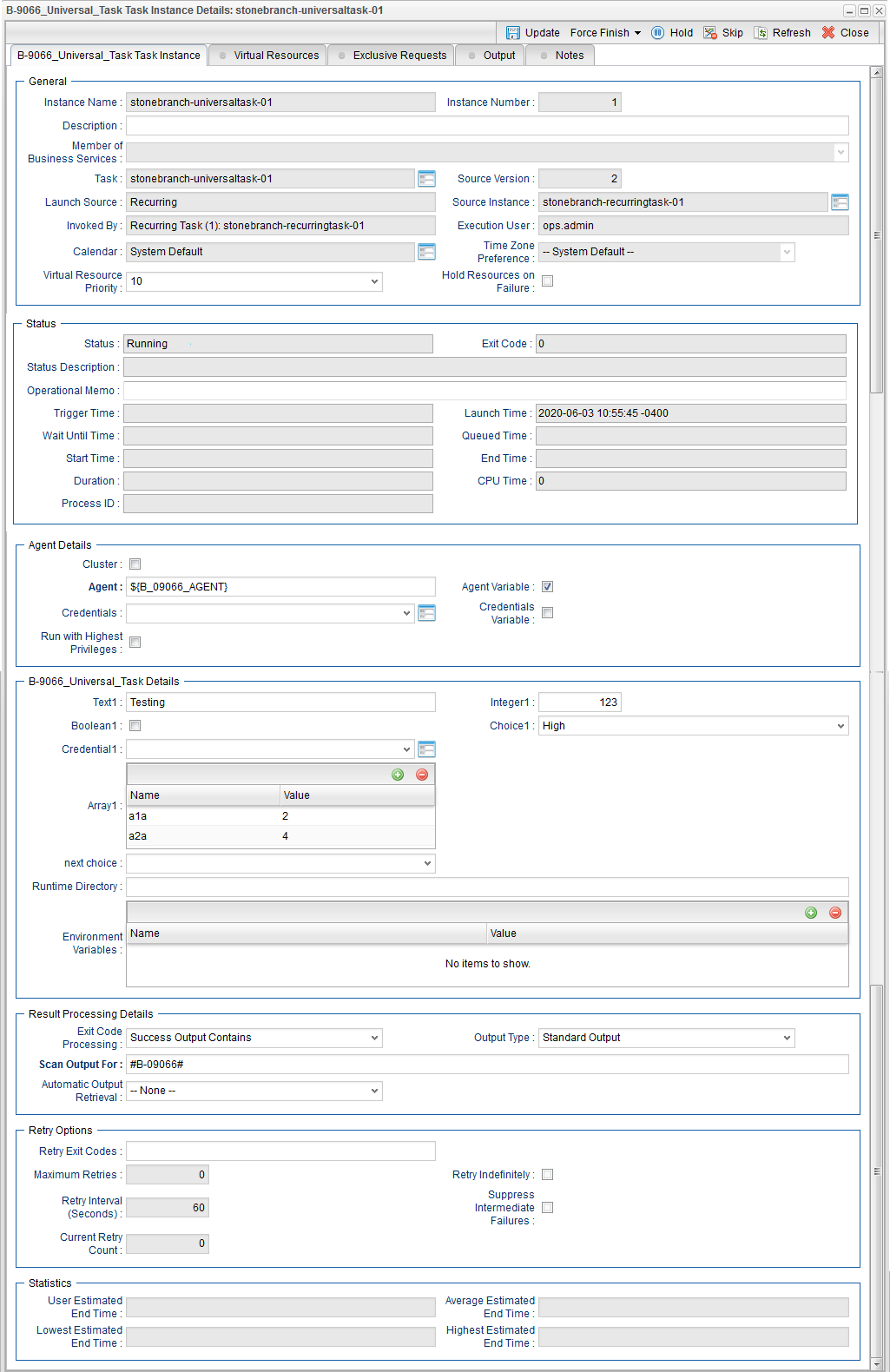
When a Universal Task is launched, the Controller creates a task instance record of that task.
A task instance contains detailed information about a single execution of that task.
You can access a task instance from:
- Instances tab on the Universal Task Details for that task
- Activity Monitor
- Task Instances list
Universal Task Instance Details
The following Universal Task Instance Details contains information on the execution of the task shown in the Universal Task Details.
Universal Task Instance Details Field Descriptions
The following table describes the fields, buttons, and tabs that display in Universal Task Instance Details.
Field Name | Description |
|---|---|
General | This section contains general information about the task instance. |
Instance Name | Name of this task instance. |
Instance Number |
System-supplied; Sequentially assigned number, maintained per task, representing the creation order of the instance. |
Description | Description of this record. Maximum length is 255 characters. |
Member of Business Services | User-defined; Allows you to select one or more Business Services that this record belongs to. (You also can Check All or Uncheck All Business Services for this record.) You can select up to 62 Business Services for any record type, and enter a maximum of 2048 characters for each Business Service. If the Business Service Visibility Restricted Universal Controller system property is set to true, depending on your assigned (or inherited) Permissions or Roles, Business Services available for selection may be restricted. |
Task |
Name of the task that was run to create this task instance. Click the icon to display Task Details for the task. |
| Source Version | Version of the task that was run to create this task instance. |
Launch Source | System-supplied; Source from which this task was launched. Options:
|
Source Instance | System-supplied; UUID of the source instance.
|
Invoked by | System-supplied; how the task instance was launched. Options:
|
Execution User |
System-supplied; If the task was launched manually; ID of the user who launched it. |
Calendar |
Calendar associated with the task instance. |
Time Zone Preference | User-defined; Allows you to specify the time zone that will be applied to the task. Options:
|
Virtual Resource Priority | Priority for acquiring a resource when two or more tasks are waiting for the resource. This priority applies to all resources required by the task. Options: 1 (high) - 100 (low). Default is 10. |
Hold Resources on Failure |
If enabled, the task instance will continue to hold Renewable resources if the task instance fails. Renewable resources will be returned only if the task instance status is either Complete, Finished, or Skipped. |
Status | This section contains information about the current status of the task instance. |
Status | |
Exit Code |
System-supplied; the exit code captured by the Agent when executing the task (for example, a command or script). |
Status Description |
System-supplied; additional information, if any, about the status of the task instance. |
Operational Memo |
User-defined operational memo. |
Evaluation Time |
If time zone of user is different than time zone of task instance; Time at which Execution Restrictions and Run Criteria were evaluated based upon the requested time zone. (Time zone of task instance displays in parentheses.) |
Critical |
Indicates that this task is in the Critical Path of a workflow. |
Wait Until Time |
Amount of time calculated to wait before the task was started, based on Wait To Start and Delay On Start times. |
Queued Time |
System-supplied; Date and time the task was queued for processing. |
Trigger Time |
System-supplied; Date and time the task instance was triggered. |
Launch Time |
System-supplied; Date and time the task instance was launched. |
Start Time |
System-supplied; Date and time the task instance started. |
End Time |
System-supplied; Date and time the task instance completed. |
Duration |
System-supplied; amount of time the task instance took to run. |
CPU Time |
System-supplied; amount of CPU time the task took to run. |
CPU Time |
System-supplied; amount of CPU time the task took to run. |
Process ID |
System-supplied; ID of the process that was launched. |
Agent Details | This section contains assorted detailed information about the Agent. |
Agent | Name of the Agent resource that identifies the machine where the operation will run. If you do not specify an Agent, you must specify an Agent Cluster. |
Agent Cluster | If Cluster is selected and Broadcast is not selected; Group of Agents, one of which the Controller will choose to run this task (compare with Cluster Broadcast). You can specify an agent cluster in addition to or in place of a specific Agent. If you specify an Agent and an agent cluster, the Controller first tries to run the task on the specific agent. If the Agent is not available, the Controller reverts to the agent cluster. See Agent Clusters for more information. |
Agent Variable | Indication of whether the Agent field is a reference field for selecting a specific Agent (unchecked) or a text field for specifying the Agent as a variable (checked). Use the format: ${variable name}. The variable must be a supported type as described in Variables and Functions. Note When updating multiple Tasks, to change from using an Agent reference to using an Agent variable, you must change the Agent Variable field to Yes and specify the Agent variable in the Agent Unresolved field. Conversely, to change from using an Agent variable to using an Agent reference, you must change the Agent Variable field to No and specify the Agent reference in the Agent field. |
Agent Cluster Variable | Indication of whether the Agent Cluster field is a reference field for selecting a specific Agent Cluster (unchecked) or a text field for specifying the Agent Cluster as a variable (checked). Use the format: The variable must be a supported type as described in Variables and Functions. Note When updating multiple Tasks, to change from using an Agent Cluster reference to using an Agent Cluster variable, you must change the Agent Cluster Variable field to Yes and specify the Agent Cluster variable in the Agent Cluster Unresolved field. Conversely, to change from using an Agent Cluster variable to using an Agent Cluster reference, you must change the Agent Cluster Variable field to No and specify the Agent Cluster reference in the Agent Cluster field. |
Credentials | Credentials under which an Agent runs this task. These Credentials override any Credentials provided in the Agent Details for any Agent running this task. If the user does not have a login shell, add a - character in front of the runtime credentials name. The Controller will provide a shell for that user and strip the - character from the name. Required if the Agent Credentials Required Universal Controller system property is true. When required, if the Credential is specified as a variable, and the variable resolves to blank, a Start Failure will occur. |
Credentials Variable | Indication of whether the Credentials field is a reference field for selecting a specific Credential (unchecked) or a text field for specifying the Credential as a variable (checked). Use the format: The variable must be a supported type as described in Variables and Functions. Note When updating multiple Tasks, to change from using a Credentials reference to using a Credentials variable, you must change the Credentials Variable field to Yes and specify the Credentials variable in the Credentials Unresolved field. Conversely, to change from using a Credentials variable to using a Credentials reference, you must change the Credentials Variable field to No and specify the Credentials reference in the Credentials field. |
Cluster Broadcast | Group of Agents, all of which will run this task (compare with Agent Cluster). If Broadcast is selected for a task, you must select a Cluster Broadcast instead of a specific Agent and/or agent cluster. Each instance of the task running on its own Agent becomes a separate task instance record in the database and displays separately on the Activity Monitor. |
Cluster Broadcast Variable | Indication of whether the Cluster Broadcast field is a reference field for selecting a specific Cluster Broadcast (unchecked) or a text field for specifying the Cluster Broadcast as a variable (checked). Use the format: ${variable name}. The variable must be a supported type as described in Variables and Functions. Note When updating multiple Tasks, to change from using a Cluster Broadcast reference to using a Cluster Broadcast variable, you must change the Cluster Broadcast Variable field to Yes and specify the Cluster Broadcast variable in the Cluster Broadcast Unresolved field. Conversely, to change from using a Cluster Broadcast variable to using a Cluster Broadcast reference, you must change the Cluster Broadcast Variable field to No and specify the Cluster Broadcast reference in the Cluster Broadcast field. |
Run with Highest Privileges | For Windows Agents; Execute the task using an elevated privileges token, rather than one subject to User Account Control (UAC) restrictions. An elevated token allows a process to execute with all the privileges available to its specified credentials. For example, a task executed with an administrative account will behave as though it received permission via a UAC dialog to perform a privileged operation. Note This option only will affect tasks executed on Windows systems that support User Account Control (UAC). It will have no affect on tasks run on Windows releases prior to Vista (for example, Windows XP, Server 2003). |
Universal Task Details | This section contains assorted detailed information about the Agent. Note The fields in this section may have Read Only or Hidden restrictions applied to them, as specified in the Universal Template on which the Universal Task is based. |
(user-defined fields) | The Details for each Universal Task contains any editable fields that were created in the Universal Template on which the Universal Task type for that Universal Task is based. System-assigned variables that match these fields are provided for inclusion in the template script. When the task is run, it executes the script, and the variables are resolved to the values of their matching values in the task. There are eight types of user-defined fields that can appear in the Details of a Universal Task:
For each type of field, default values, format, and/or limitations are specified in the Universal Template. In any Universal Task based on that Universal Template, you can override and/or define values - within the specified format and limitations - for those fields.
|
Runtime Directory |
|
Environment Variables |
Allows you to enter environment variables needed by the program to run. To add a variable, click the + icon and enter a Name and Value. To delete a variable, select in the list of variables and click the - icon. You can add a maximum of 4,000 characters for the combined Names and Values of all variables. The variable is listed in the space underneath. |
| Result Processing Details | This section contains assorted detailed information about result processing for this task. |
Exit Code Processing | Specifies how the Controller should determine whether the executed command failed or completed successfully. Options:
|
Output Type | Required if Exit Code Processing = Success Output Contains or Failure Output Contains; type of output. Options:
|
Content Type | If Output Type is Extension; Output type that the Result Processing mechanism should assume when evaluating the output. If the expected output is XML or JSON, it is valid to specify Text. However, when specifying XML or JSON, the output must be XML or JSON respectively; otherwise, the parsing will fail and the path expression evaluation will return no matches. |
Path Expression | XPath Expression if Content Type is XML, or the JsonPath Expression if Content Type is JSON, to be used when evaluating the Extension output. |
Operator | If Output Type is Extension; Condition Operator to evaluate in combination with the specified condition Value. |
Value | If Output Type is Extension; Condition Value to evaluate in combination with the specified condition Operator. |
Strategy | If Content Type is XML or JSON; Strategy to take when applying the condition Operator and Value against the Path Expression matches when Content Type is XML or JSON. |
Auto Cleanup | Enables the auto cleanup of Extension output upon task instance completion or, if the task instance is within a workflow, when the top level workflow instance completes. |
Scan Output For | Required if Exit Code Processing = Success Output Contains or Failure Output Contains; text for which the Controller should scan the output file. The Controller will process this field as a regular expression. |
Output File (for Exit Code Processing) | Required if Output Type = File; path and file name of the output file that should be scanned for the text in the Scan Output For field. |
Exit Codes | Required if Exit Code Processing = Success Exitcode Range or Failure Exitcode Range; range of exit codes. Format: Numeric. Use commas to list a series of exit codes; use hyphens to specify a range. Example: 1,5, 22-30. Variables are supported. |
Automatic Output Retrieval |
Specifies whether you want the Controller to automatically retrieve any output from the job and attach it to the task instance record. Options:
Note Tasks specifying Automatic Output Retrieval will fail with Start Failure if the Agent Output Prohibited field is true in the Details of the specified Agent. |
Wait For Output | If Automatic Output Retrieval = Standard Output, Standard Error, File, or Standard Output/Error, and Failure Only is not enabled (checked); Specification that the task should wait for the requested output before completing. |
Failure Only | If Automatic Output Retrieval = Standard Output, Standard Error, File, or Standard Output/Error, and Wait For Output is not enabled (checked); Indication for whether output should be retrieved on task failure only. |
Start Line | If Automatic Output Retrieval = Standard Output, Standard Error, File, or Standard Output/Error; Instructs the Controller to retrieve data beginning at the line indicated.
|
Number of Lines | If Automatic Output Retrieval = Standard Output, Standard Error, File, or Standard Output/Error; Allows you to limit the retrieved data to the number of lines specified. If a Number of Lines value is not specified, the default is the value of the Retrieve Output Default Number Of Lines Universal Controller system property. |
Scan Text | If Automatic Output Retrieval = Standard Output, Standard Error, File, or Standard Output/Error; Regex pattern that the Controller will search for a match for in STDOUT/STDERR or a specified file. The Controller will include the Number of Lines above and below the first line matched. |
Output File (for Automatic Output Retrieval) | Required if Automatic Output Retrieval = File; path and file name containing the output that you want automatically retrieved and attached to the task instance. |
Retry Options | This section contains specifications for retrying the task. |
Retry Exit Codes |
Exit code range for which an auto-retry of tasks in FAILED status will occur. Exit code ranges must be in the same format as ranges specified in the Exit Codes field. Maximum Retries must be greater than 0. If this field is empty, any exit code potentially will cause a retry. Variables are supported. Note If you are updating a task instance, the Retry Exit Codes field must be resolved; you cannot change the value to a variable. |
Maximum Retries |
User-defined; maximum number of times that the Controller should retry this task after it has started and gone to a failed state. |
Retry Indefinitely | User-defined; indicates whether the Controller should continue trying indefinitely to run this task. If you enable this field, it overrides any value placed in the Maximum Retries field. |
Retry Interval (Seconds) |
User-defined; number of seconds between each retry. |
Current Retry Count |
System-supplied; current number of times that the Controller has retried the task after it first went to failure status. |
Suppress Intermediate Failures | User-defined; If the task instance is in the Failed status, indicates whether or not the following will be suppressed until all scheduled retry attempts (a Maximum Retries value has been entered or Retry Indefinitely has been enabled) have been made:
|
Next Retry Time |
System-supplied for a task instance in the Failed status that is scheduled for automatic retry; Next time that a retry will be made. If a task instance is not scheduled for automatic retry, Next Retry Time does not display in the task instance Details. |
Wait / Delay Options | This section contains specifications for waiting to start and/or delaying on start the task. |
Wait To Start |
Amount of time to wait before starting a task from the time that it was launched.
|
Wait Time | If Wait To Start = Time or Relative Time; Time of day (in 24-hour time) to wait until before starting the task. |
Wait Day Constraint | If Wait To Start = Time or Relative Time; Specification for whether or not to advance the wait time to another day. Valid values:
Default is – None --. |
Wait Duration | If Wait To Start = Duration; Number of days, hours, minutes, and seconds to wait before starting the task. |
Wait Duration In Seconds | If Wait To Start = Seconds; Number of seconds to wait before starting the task. |
Delay On Start |
Amount of time to delay the start of a task, after it has been launched, from the time that it is eligible to start; that is, all dependencies have been met. For example: it is not being held, it is not waiting on any predecessors, or there is no wait time specified.
|
Delay Duration | If Delay On Start = Duration; Number of days, hours, minutes, and seconds to delay after starting the task. |
Delay Duration In Seconds | If Delay On Start = Seconds; Number of seconds to delay after starting the task. |
Time Options | This section contains time-related specifications for the task instance. |
Late Start | If enabled, and if the task instance starts after the time or period specified, the task instance is flagged as late. You can specify a time or duration to determine a late start (see Late Start Type). To determine whether a task instance started late, open the task instance and locate the Started Late field; the field is checked if the instance started after the specified time. The Started Late field displays in the task instance Details only if the user specified a Late Start in the task Details. |
Started Late | System-supplied; this field is flagged if the task started later than the time specified in the Late Start fields. |
Late Start Type | Required if Late Start is enabled. Options:
|
Late Start Time | If Late Start Type = Time; Time after which the task start time is considered late. Use HH:MM, 24-hour time. |
Late Start Day Constraint | If Late Start Type = Time; Specification for whether or not to advance the late start time to another day.
Default is – None --. |
Late Start Nth Amount | If Late Start Day Constraint = Nth Day; Number of days to advance. |
Late Start Duration | If Late Start Type = Duration; Duration (amount of relative time) after which the task is considered to have started late. For a task within a workflow, the duration is the period between the time the workflow starts and the time the task itself starts. For example, a task might have a Late Start Duration of 60 minutes. If the workflow starts at 9:00 a.m. but the task itself does not start until 10:30, the task has started late. For a task that is not within a workflow, Late Start Duration has meaning only if the task has been held upon starting. For example, if a task has a Late Start Duration of 60 minutes and the Hold on Start field is enabled, if the task is not released from hold within the amount of time specified in the Late Start Duration field, the task has started late. |
Computed Late Start Time | If Late Start is enabled, the computed Date/Time for when the task instance will be Late Started. |
Late Finish | If enabled, and if the task instance finishes after the time or period specified, the task instance is flagged as late. You can specify a time or duration to determine a late finish (see Late Finish Type). To determine whether a task instance finished late, open the task instance and locate the Finished Late field; the field is checked if the instance finished after the specified time or lasted longer than expected. This field only appears on the task instance if the user specified a Late Finish in the task definition. |
Finished Late | System-supplied; this field is flagged if the task finished later than the time or duration specified in the Late Finish fields. |
Late Finish Type | Required if Late Finish is enabled. Options:
|
Late Finish Offset Type | |
Late Finish Percentage Offset ( + ) | Required if Late Finish Offset Type = Percentage; Percentage of Average Duration to use as an offset. The late finish time is calculated by adding the offset to the Average Duration. |
Late Finish Duration Offset ( + ) | Required if Late Finish Offset Type = Duration; Duration to use as an offset. The late finish time is calculated by adding the offset to the Average Duration. |
Late Finish Duration Offset Unit | |
Late Finish Time | If Late Finish Type = Time; Time after which the task finish time is considered late. Use HH:MM, 24-hour time. |
Late Finish Day Constraint | If Late Finish Type = Time; Specification for whether or not to advance the late finish time to another day.
Default is – None --. |
Late Finish Nth Amount | If Late Finish Day Constraint = Nth Day; Number of days to advance. |
Late Finish Duration | If Late Finish Type = Duration; Longest amount of time this task instance should take to run. |
Computed Late Finish Time | If Late Finish is enabled, the computed Date/Time for when the task instance will be Late Finished. |
Early Finish | If enabled, and if the task instance finishes before the time or period specified, the task instance is flagged as early. You can specify a time or duration to determine an early finish (see Early Finish Type). To determine whether a task instance finished early, open the task instance and locate the Finished Early field; the field is checked if the instance finished before the specified time or did not last as long as expected. This field only appears on the task instance if the user added Early Finish specifications to the task definition. |
Finished Early | System-supplied; this field is flagged if the task finished earlier than the time specified in the Early Finish fields. |
Early Finish Type | Required if Early Finish is enabled. Options:
|
Early Finish Offset Type | |
Early Finish Percentage Offset ( - ) | Required if Early Finish Offset Type = Percentage; Percentage of Average Duration to use as an offset. The early finish time is calculated by subtracting the offset from the Average Duration. |
Early Finish Duration Offset ( - ) | Required if Early Finish Offset Type = Duration; Duration to use as an offset. The early finish time is calculated by subtracting the offset from the Average Duration. |
Early Finish Duration Offset Unit | |
Early Finish Time | If Early Finish Type = Time; Time before which the task finish time is considered early. That is, enter a time at which the task should still be running. Use HH:MM, 24-hour time. |
Early Finish Day Constraint | If Early Finish Type = Time; Specification for whether or not to advance the early finish time to another day.
Default is – None --. |
Early Finish Nth Amount | If Early Finish Day Constraint = Nth Day; Number of days to advance. |
Early Finish Duration | If Early Finish Type = Duration; Shortest amount of time this task instance should take to run. |
Projected Late | System-provided if Late Start Time, Late Start Duration, or Late Finish Time is specified; This field is flagged if the task instance is projected to be late based on critical path projected end times (see Critical Path Projected Late Action Maximum and Critical Path Projected Late Threshold In Minutes Universal Controller system properties). . |
Critical Path Options | This section contains Critical Path-related specifications for the task. |
CP Duration | Optional; Allows you to override the estimated Critical Path Duration of the task when running in a Workflow; used in conjunction with the CP Duration Unit field. In most cases, this field should be left blank, which implies that the Controller will estimate the Critical Path Duration based on historical executions. Valid values are any integer equal to or greater than 0. Variables and Functions are supported. |
CP Duration (Resolved) | Displays the current resolved value of the CP Duration field, which may contain variables or functions that will be displayed as unresolved until the task instance starts. The CP Duration (Resolved) field can continue to change value until the task instance starts, at which time CP Duration will display as resolved and CP Duration (Resolved) will no longer be visible unless there was an issue resolving the variables and/or functions contained within CP Duration. If the Controller is unable to resolve CP Duration or it resolves to an invalid value, CP Duration will be ignored and the Controller will estimate the Critical Path Duration based on historical executions. |
CP Duration Unit | Type of CP Duration; used in conjunction with the CP Duration field. For example, for a CP Duration of two minutes, specify 2 in the CP Duration field and select Minutes in this field. Options:
Default is Minutes. |
Workflow Execution Options | This section contains Execution Restriction specifications for the task if it is within a Workflow. |
Execution Restriction | Specification for whether or not there is a restriction for this task to be run, skipped, or held. Options are:
If Execution Restriction on a task is Run or Skip, then when it is part of a Workflow that is being launched, the Restriction Period is evaluated. The task instance will be skipped if Execution Restriction is Skip and the date is within the Restriction Period or Execution Restriction is Run and the date is not within the Restriction Period. Execution Restriction can be set to Skip with a Restriction Period of - None -, meaning the restriction is always active and the task will be skipped when it is part of a Workflow. |
Restriction Period | If Execution Restriction = Run, Skip, or Hold; Period of time when the task is restricted. Options are:
|
Before Date | If Restriction Period = Before or Span; Date before which the restriction is valid. |
Before Time | If Restriction Period = Before or Span; Time on the selected date before which the restriction is valid. |
After Date | If Restriction Period = After or Span; Date after which the restriction is valid. |
After Time | If Restriction Period = After or Span; Time on the selected date after which the restriction is valid. |
Date List | If Restriction Period = On; Date(s) on which the restriction is valid. |
Statistics | This section contains time-related statistics for the the task instance. |
User Estimated End Time | System-supplied; If the user entered information into the User Estimated Duration field in the task Details, the Controller uses this information to calculate an end time for the task instance, based on the date/time the task instance started. |
Lowest Estimated End Time |
System-supplied; Lowest estimated end time of the task instance, calculated by the Controller based on the date/time the task instance started. |
Average Estimated End Time |
System-supplied; Average estimated end time of the task instance, calculated by the Controller based on the date/time the task instance started. |
Highest Estimated End Time |
System-supplied; Highest estimated end time of the task instance, calculated by the Controller based on the date/time the task instance started. |
Projected End Time | System-supplied; projected end time of the task instance, calculated by the Controller based on the projected end time of its predecessor (or the maximum projected end time of all its predecessors, if more than one path exists to that task instance) plus its estimated critical path duration. |
Metadata | This section contains Metadata information about this record. |
UUID | Universally Unique Identifier of this record. |
Updated By | Name of the user that last updated this record. |
Updated | Date and time that this record was last updated. |
Created By | Name of the user that created this record. |
Created | Date and time that this record was created. |
Status History | History of all statuses that the task instance has gone through. |
Buttons | This section identifies the buttons displayed above and below the Task Instance Details that let you perform various actions. |
Update |
Saves updates to the record. |
Force Finish | |
Hold |
|
Skip |
|
Re-run | See Re-running a Task Instance. Note If the Re-run (Suppress Intermediate Failures) Permitted Universal Controller system property is set to true, the Re-run button is a drop-down list containing the following options:
The Re-run button does not display if the task instance does not qualify for Re-run. If the task instance qualifies for Re-run, but already has Retry Options enabled, Re-run (Suppress Intermediate Failures) displays as disabled in the drop-down list. |
View Parent |
Displays the task instance Details for the parent Workflow of this task instance. |
Retrieve Output |
|
Delete |
Deletes the current record. |
Refresh | Refreshes any dynamic data displayed in the Details. |
Close | For pop-up view only; closes the pop-up view of this task instance. |
Tabs | This section identifies the tabs across the top of the Task Instance Details that provide access to additional information about the task instance. |
Virtual Resources |
|
Exclusive Requests |
|
Output | Displays output generated from the process, if any, based on specifications provided by the user in the Automatic Output Retrieval fields in the task Details. If automatic output retrieval was not available or was not selected, output can be obtained by clicking the Retrieve Output button. |
Notes |
|
Additional Task and Task Instance Details
For information on how to access additional details - such as Metadata and complete database Details - for Universal Tasks and Universal Task Instances (or any type of record), see Records.
Running a Universal Task
You can run a Universal Task:
- Manually, by clicking the Launch Task or Launch Task with Variables button in the Universal Tasks list or Universal Task Details Action menu.
- As part of a Workflow.
- Specify triggers that run the task automatically based on times or events.
Monitoring Task Execution
You can monitor all system activity from the Activity Monitor and can view activity history from the History list.