Universal Monitor Task
- Stonebranch (Deactivated)
Overview
The Universal Monitor task allows you to monitor published Universal Events.
To define an Universal Monitor, you must specify either a:
- Global Universal Event Template.
- Local Universal Template Event Template.
For continuous monitoring of published Universal Events, assign the Universal Monitor to a Universal Monitor Trigger, with the trigger firing each time the Universal Event match criteria has been met.
For non-continuous monitoring of published Universal Events, with Universal Monitor completing only when the Universal Event match criteria has been met, add Universal Monitor to a workflow or launch it directly (stand-alone).
Built-In Variables
The following built-in variables can be used in a Universal Monitor task to pass data where appropriate:
Creating a Universal Monitor Task
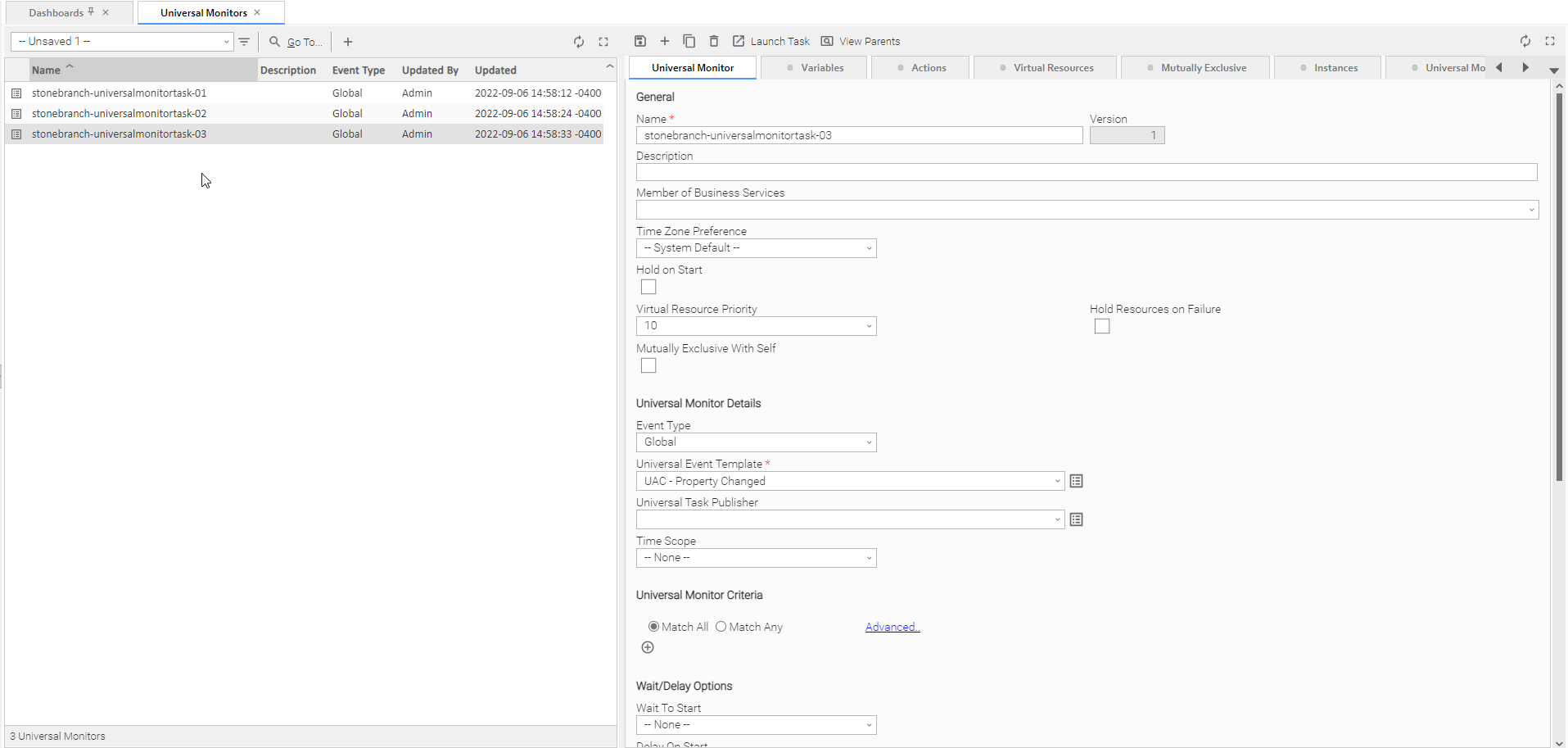
Step 1 | From the Automation Center navigation pane, select Tasks > Universal Monitors. The Universal Monitor Tasks list displays a list of all currently defined Universal Monitor tasks. |
|---|---|
Step 2 | Enter/select Details for a new Universal Monitor task, using the field descriptions below as a guide.
To display more of the Details fields on the screen, you can either:
|
Step 3 | Click the |


Note
To open an existing record on the list, either:
- Click a record in the list to display its record Details below the list. (To clear record Details below the list, click the New button that displays above and below the Details.)
- Clicking the Details icon next to a record name in the list, or right-click a record in the list and then click Open in the Action menu that displays, to display a pop-up version of the record Details.
- Right-click a record in the a list, or open a record and right-click in the record Details, and then click Open In Tab in the Action menu that displays, to display the record Details under a new tab on the record list page (see Record Details as Tabs).
Universal Monitor Task Details
The following Universal Monitor Task Details is for an existing Email Monitor task.
Depending on the values that you enter / select for these fields, and whether or not the Universal Monitor task has ever been launched, more (or less) fields may display. See the field descriptions, below, for a description of all fields that may display in the Universal Monitor Task Details.
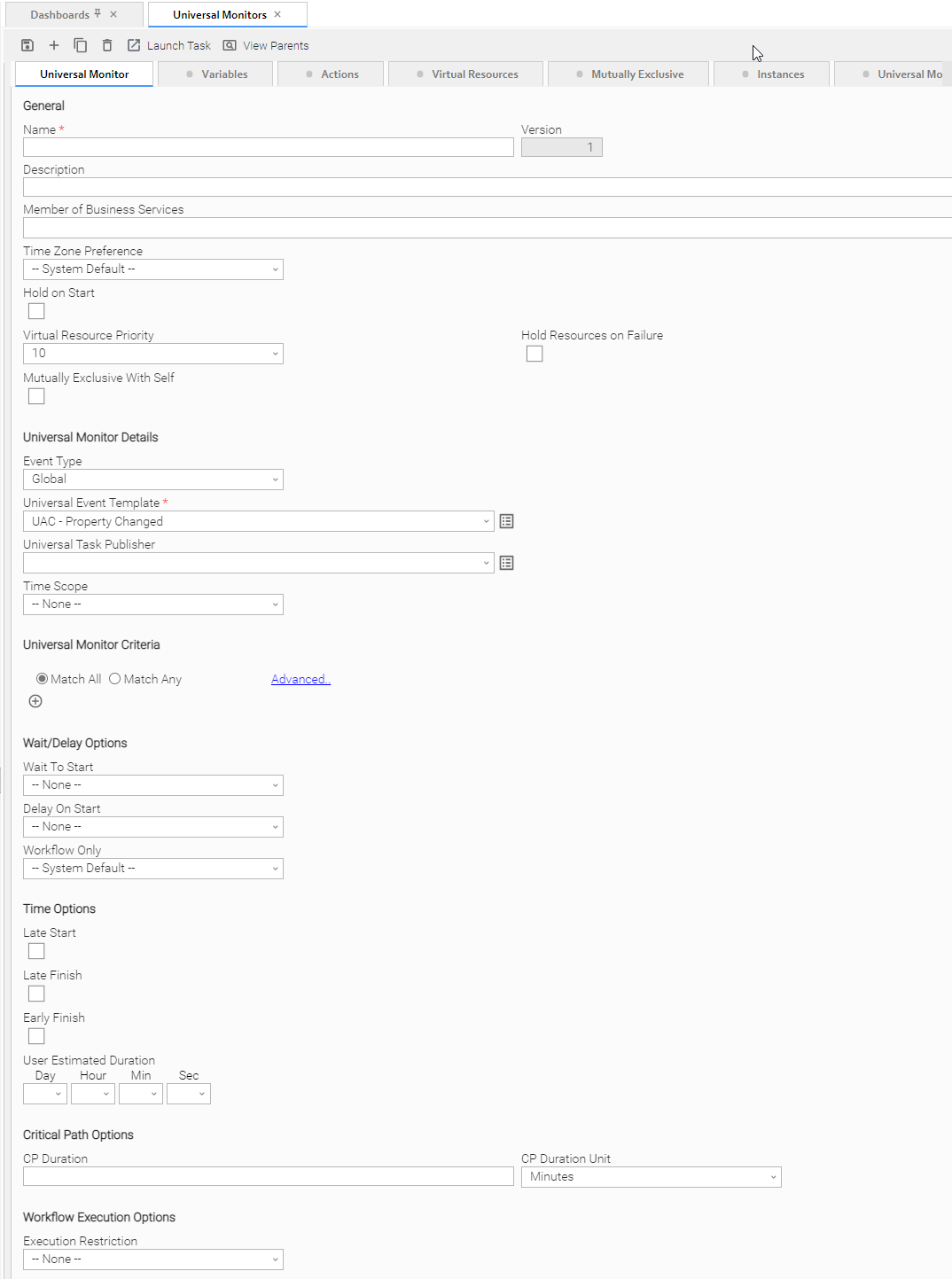
Universal Monitor Task Details Field Descriptions
The following table describes the fields, buttons, and tabs that display in the Universal Monitor Task Details.
Field Name | Description | ||||||||||
|---|---|---|---|---|---|---|---|---|---|---|---|
General | This section contains general information about the task. | ||||||||||
Name | User-defined name of this task (Maximum = 255 alphanumeric characters); variables supported. It is the responsibility of the user to develop a workable naming scheme for tasks. | ||||||||||
Version | System-supplied; version number of the current record, which is incremented by the Controller every time a user updates a record. Click the Versions tab to view previous versions. For details, see Record Versioning. | ||||||||||
Description | Description of this record. Maximum length is 255 characters. | ||||||||||
Member of Business Services | User-defined; Allows you to select one or more Business Services that this record belongs to. (You also can Check All or Uncheck All Business Services for this record.) You can select up to 62 Business Services for any record type, and enter a maximum of 2048 characters for each Business Service. If the Business Service Visibility Restricted Universal Controller system property is set to true, depending on your assigned (or inherited) Permissions or Roles, Business Services available for selection may be restricted. | ||||||||||
Resolve Name Immediately | If enabled, the Instance Name of the task instance will be resolved immediately at trigger/launch time. | ||||||||||
Time Zone Preference | User-defined; Allows you to specify the time zone that will be applied to the task. Options:
| ||||||||||
Hold on Start | If enabled, when the task is launched it appears in the Activity Monitor with a status of Held. The task runs when the user releases it. | ||||||||||
Hold Reason |
Information about why the task will be put on hold when it starts. | ||||||||||
Virtual Resource Priority | Priority for acquiring a resource when two or more tasks are waiting for the resource. This priority applies to all resources required by the task. Options: 1 (high) - 100 (low). Default is 10. | ||||||||||
Hold Resources on Failure |
If enabled, the task instance will continue to hold Renewable resources if the task instance fails. Renewable resources will be returned only if the task instance status is either Complete, Finished, or Skipped. | ||||||||||
| Mutually Exclusive With Self | If enabled, the task will not be allowed to run concurrently with itself. Task will not start until the instance that is running finishes. An instance will transition to Exclusive Wait status if it cannot start due to another instance already running. | ||||||||||
| Simulate | Specifies if the instance should execute under simulation mode. | ||||||||||
Universal Monitor Details | This section contains assorted detailed information about the task. | ||||||||||
Event Type | Type of Universal Event to monitor:
| ||||||||||
Universal Event Template | If Event Type is Global; Name of the Universal Event Template on which this Universal Monitor task is based. | ||||||||||
Universal Template | If Event Type is Local; Name of the Universal Template on which this Universal Monitor task is based. | ||||||||||
Event Template | If Event Type is Local; Name of the Event Template within the specified Universal Template on which this Universal Monitor task is based. | ||||||||||
Universal Task Publisher | Optional; Universal Extension-based Universal Task that will be:
The Running Universal Task Publisher can only publish Universal Events to this Universal Monitor, and this Universal Monitor can only match on Universal Events published by the Running Universal Task Publisher. The Publisher is expected to publish the events that this Universal Monitor is expecting to come in.
A Universal Monitor Task Instance that specifies a Publisher will show the associated Universal Task Instance representing the Publisher. | ||||||||||
Universal Task Publisher Variables | List of task variables to override.
The following order of precedence will apply if a variable is present in multiple scopes:
| ||||||||||
Time Scope | Allows monitoring of Universal Events that were published prior to the Universal Monitor task running, or limits how long the Universal Monitor task continues to monitor before becoming Failed, Options:
| ||||||||||
Expiration Action | If Time Scope is Relative; State to transition to if Relative Time Scope conditions are not met within the specific window. Options:
| ||||||||||
From | Format is (+/-)hh:mm If Time Scope = Relative; Together with the Time Scope To field, it allows you to specify a window of time, relative to the time the Universal Monitor task launched, during which the conditions of the Universal Monitor must be met. If the conditions are not met within the specified window, the Universal Monitor task instance will transition to Failed (default) or Finished status, as determined by the Expiration Action. hh must be a positive integer. mm must be a positive integer between 0 and 59 inclusive. For example, -124:00, -12:00, -6:00, 00:00, 6:00, 12:00, or 124:00. | ||||||||||
To | Format is (+/-)hh:mm If Time Scope = Relative; Together with the Time Scope From field, it allows you to specify a window of time, relative to the time the Universal Monitor task launched, during which the conditions of the Universal Monitor must be met. If the conditions are not met within the specified window, the Universal Monitor task instance will transition to Failed (default) or Finished status, as determined by the Expiration Action. hh must be a positive integer. mm must be a positive integer between 0 and 59 inclusive. For example, -124:00, -12:00, -6:00, 00:00, 6:00, 12:00, or 124:00. | ||||||||||
Universal Monitor Criteria | This section contains criteria for selecting Universal Events to monitor. | ||||||||||
Match All / Match Any | Criteria for matching attributes of the selected Universal Event Template.
If no match criteria is specified, the Universal Monitor will match any published Universal Event of the selected Universal Event Template. | ||||||||||
Wait / Delay Options | This section contains specifications for waiting to start and/or delaying on start the task. | ||||||||||
Wait To Start |
Amount of time to wait before starting a task from the time that it was launched.
| ||||||||||
Wait Time | If Wait To Start = Time or Relative Time; Time of day (in 24-hour time) to wait until before starting the task. | ||||||||||
Wait Day Constraint | If Wait To Start = Time or Relative Time; Specification for whether or not to advance the wait time to another day. Valid values:
Default is – None --. | ||||||||||
Wait Duration | If Wait To Start = Duration; Number of days, hours, minutes, and seconds to wait before starting the task. | ||||||||||
Wait Duration In Seconds | If Wait To Start = Seconds; Number of seconds to wait before starting the task. | ||||||||||
Delay On Start |
Amount of time to delay the start of a task, after it has been launched, from the time that it is eligible to start; that is, all dependencies have been met. For example: it is not being held, it is not waiting on any predecessors, or there is no wait time specified.
| ||||||||||
Delay Duration | If Delay On Start = Duration; Number of days, hours, minutes, and seconds to delay after starting the task. | ||||||||||
Delay Duration In Seconds | If Delay On Start = Seconds; Number of seconds to delay after starting the task. | ||||||||||
Workflow Only | Specification for whether or not to apply the Wait To Start and Delay On Start specifications only if the task is in a Workflow.
| ||||||||||
Time Options | This section contains time-related statistics for task instances of the task. | ||||||||||
Late Start | If enabled, and if the task instance starts after the time or period specified, the task instance is flagged as late. You can specify a time or duration to determine a late start (see Late Start Type). To determine whether a task instance started late, open the task instance and locate the Started Late field; the field is checked if the instance started after the specified time. The Started Late field displays in the task instance Details only if the user specified a Late Start in the task Details. | ||||||||||
Late Start Type | Required if Late Start is enabled. Options:
| ||||||||||
Late Start Time | If Late Start Type = Time; Time after which the task start time is considered late. Use HH:MM, 24-hour time. | ||||||||||
Late Start Day Constraint | If Late Start Type = Time; Specification for whether or not to advance the late start time to another day.
Default is – None --. | ||||||||||
Late Start Nth Amount | If Late Start Day Constraint = Nth Day; Number of days to advance. | ||||||||||
Late Start Duration | If Late Start Type = Duration; Duration (amount of relative time) after which the task is considered to have started late. For a task within a workflow, the duration is the period between the time the workflow starts and the time the task itself starts. For example, a task might have a Late Start Duration of 60 minutes. If the workflow starts at 9:00 a.m. but the task itself does not start until 10:30, the task has started late. For a task that is not within a workflow, Late Start Duration has meaning only if the task has been held upon starting. For example, if a task has a Late Start Duration of 60 minutes and the Hold on Start field is enabled, if the task is not released from hold within the amount of time specified in the Late Start Duration field, the task has started late. | ||||||||||
Late Finish | If enabled, and if the task instance finishes after the time or period specified, the task instance is flagged as late. You can specify a time or duration to determine a late finish (see Late Finish Type). To determine whether a task instance finished late, open the task instance and locate the Finished Late field; the field is checked if the instance finished after the specified time or lasted longer than expected. This field only appears on the task instance if the user specified a Late Finish in the task definition. | ||||||||||
Late Finish Type | Required if Late Finish is enabled. Options:
| ||||||||||
Late Finish Offset Type | |||||||||||
Late Finish Percentage Offset ( + ) | Required if Late Finish Offset Type = Percentage; Percentage of Average Duration to use as an offset. The late finish time is calculated by adding the offset to the Average Duration. | ||||||||||
Late Finish Duration Offset ( + ) | Required if Late Finish Offset Type = Duration; Duration to use as an offset. The late finish time is calculated by adding the offset to the Average Duration. | ||||||||||
Late Finish Duration Offset Unit | |||||||||||
Late Finish Time | If Late Finish Type = Time; Time after which the task finish time is considered late. Use HH:MM, 24-hour time. | ||||||||||
Late Finish Day Constraint | If Late Finish Type = Time; Specification for whether or not to advance the late finish time to another day.
Default is – None --. | ||||||||||
Late Finish Nth Amount | If Late Finish Day Constraint = Nth Day; Number of days to advance. | ||||||||||
Late Finish Duration | If Late Finish Type = Duration; Longest amount of time this task instance should take to run. | ||||||||||
Early Finish | If enabled, and if the task instance finishes before the time or period specified, the task instance is flagged as early. You can specify a time or duration to determine an early finish (see Early Finish Type). To determine whether a task instance finished early, open the task instance and locate the Finished Early field; the field is checked if the instance finished before the specified time or did not last as long as expected. This field only appears on the task instance if the user added Early Finish specifications to the task definition. | ||||||||||
Early Finish Type | Required if Early Finish is enabled. Options:
| ||||||||||
Early Finish Offset Type | |||||||||||
Early Finish Percentage Offset ( - ) | Required if Early Finish Offset Type = Percentage; Percentage of Average Duration to use as an offset. The early finish time is calculated by subtracting the offset from the Average Duration. | ||||||||||
Early Finish Duration Offset ( - ) | Required if Early Finish Offset Type = Duration; Duration to use as an offset. The early finish time is calculated by subtracting the offset from the Average Duration. | ||||||||||
Early Finish Duration Offset Unit | |||||||||||
Early Finish Time | If Early Finish Type = Time; Time before which the task finish time is considered early. That is, enter a time at which the task should still be running. Use HH:MM, 24-hour time. | ||||||||||
Early Finish Day Constraint | If Early Finish Type = Time; Specification for whether or not to advance the early finish time to another day.
Default is – None --. | ||||||||||
Early Finish Nth Amount | If Early Finish Day Constraint = Nth Day; Number of days to advance. | ||||||||||
Early Finish Duration | If Early Finish Type = Duration; Shortest amount of time this task instance should take to run. | ||||||||||
User Estimated Duration | Required if Early Finish Type or Late Finish Type = Average Duration; Estimated amount of time it should normally take to run this task. The Controller uses this information to calculate the User Estimated End Time on a task instance record. User Estimated Duration is used when the Average Duration is not available; for example, on the first launch of a task. | ||||||||||
Critical Path Options | This section contains Critical Path-related specifications for the task. | ||||||||||
CP Duration | Optional; Allows you to override the estimated Critical Path Duration of the task when running in a Workflow; used in conjunction with the CP Duration Unit field. In most cases, this field should be left blank, which implies that the Controller will estimate the Critical Path Duration based on historical executions. Valid values are any integer equal to or greater than 0. Variables and Functions are supported. | ||||||||||
CP Duration (Resolved) | Displays the current resolved value of the CP Duration field, which may contain variables or functions that will be displayed as unresolved until the task instance starts. The CP Duration (Resolved) field can continue to change value until the task instance starts, at which time CP Duration will display as resolved and CP Duration (Resolved) will no longer be visible unless there was an issue resolving the variables and/or functions contained within CP Duration. If the Controller is unable to resolve CP Duration or it resolves to an invalid value, CP Duration will be ignored and the Controller will estimate the Critical Path Duration based on historical executions. | ||||||||||
CP Duration Unit | Type of CP Duration; used in conjunction with the CP Duration field. For example, for a CP Duration of two minutes, specify 2 in the CP Duration field and select Minutes in this field. Options:
Default is Minutes. | ||||||||||
Workflow Execution Options | This section contains Execution Restriction specifications for the task if it is within a Workflow. | ||||||||||
Execution Restriction | Specification for whether or not there is a restriction for this task to be run, skipped, or held. Options are:
If Execution Restriction on a task is Run or Skip, then when it is part of a Workflow that is being launched, the Restriction Period is evaluated. The task instance will be skipped if Execution Restriction is Skip and the date is within the Restriction Period or Execution Restriction is Run and the date is not within the Restriction Period. Execution Restriction can be set to Skip with a Restriction Period of - None -, meaning the restriction is always active and the task will be skipped when it is part of a Workflow. | ||||||||||
Restriction Period | If Execution Restriction = Run, Skip, or Hold; Period of time when the task is restricted. Options are:
| ||||||||||
Before Date | If Restriction Period = Before or Span; Date before which the restriction is valid. | ||||||||||
Before Time | If Restriction Period = Before or Span; Time on the selected date before which the restriction is valid. | ||||||||||
After Date | If Restriction Period = After or Span; Date after which the restriction is valid. | ||||||||||
After Time | If Restriction Period = After or Span; Time on the selected date after which the restriction is valid. | ||||||||||
Date List | If Restriction Period = On; Date(s) on which the restriction is valid. | ||||||||||
Statistics | This section contains time-related statistics for task instances of the task. | ||||||||||
| First Execution | System-supplied; End Time of the first instance of this task to complete. | ||||||||||
Last Execution | System-supplied; End Time of the last instance of this task to complete. | ||||||||||
Last Instance Duration |
System-supplied; Amount of time the task took to run the last time it ran. | ||||||||||
Lowest Instance Time |
System-supplied; Lowest amount of time this task has taken to run. | ||||||||||
Average Instance Time |
System-supplied; Average amount of time this task takes to run. | ||||||||||
Highest Instance Time |
System-supplied; Highest amount of time this task has taken to run. | ||||||||||
Number of Instances |
System-supplied; Number of instances in the database for this task. | ||||||||||
Metadata | This section contains Metadata information about this record. | ||||||||||
UUID | Universally Unique Identifier of this record. | ||||||||||
Updated By | Name of the user that last updated this record. | ||||||||||
Updated | Date and time that this record was last updated. | ||||||||||
Created By | Name of the user that created this record. | ||||||||||
Created | Date and time that this record was created. | ||||||||||
Buttons | This section identifies the buttons displayed above and below the Task Details that let you perform various actions. | ||||||||||
Save | Saves a new task record in the Controller database. | ||||||||||
Save & New | Saves a new record in the Controller database and redisplays empty Details so that you can create another new record. | ||||||||||
Save & View | Saves a new record in the Controller database and continues to display that record. | ||||||||||
New | Displays empty (except for default values) Details for creating a new task. | ||||||||||
Update |
Saves updates to the record. | ||||||||||
Launch Task |
| ||||||||||
View Parents |
Displays a list of any parent Workflow tasks for this task. | ||||||||||
Copy | Creates a copy of this task, which you are prompted to rename. | ||||||||||
Delete |
Deletes the current record. Note You cannot delete a task if it is either:
| ||||||||||
Refresh | Refreshes any dynamic data displayed in the Details. | ||||||||||
Close | For pop-up view only; closes the pop-up view of this task. | ||||||||||
Tabs | This section identifies the tabs across the top of the Task Details that provide access to additional information about the task. | ||||||||||
Variables |
| ||||||||||
Actions | Allows you to specify actions that the Controller will take automatically based on events that occur during the execution of this task. Events are:
Actions are:
| ||||||||||
Virtual Resources |
| ||||||||||
Mutually Exclusive |
| ||||||||||
Instances | Lists all instances of the task. | ||||||||||
Universal Monitor Triggers | Lists all Universal Monitor triggers that reference this task in the Universal Monitor field of the trigger Details; that is, a list of all Email Monitor triggers that execute this task. For instructions on creating triggers, see Triggers. | ||||||||||
Triggers | List of all triggers that reference this task in the Task(s) field of the trigger Details; that is, a list of all triggers that have been defined to launch this task. Also allows you to add new triggers. If you add a new trigger from this location, the Controller automatically constructs a default trigger name as follows: <current task name>#TRIGGER#. You can change the default name if desired. For instructions on creating triggers, see Triggers. | ||||||||||
Notes |
| ||||||||||
Versions |
|
Viewing a Universal Monitor Task Instance
When a Universal Monitor task is launched, the Controller creates a task instance record of that task.
A task instance contains detailed information about a single execution of that task.
You can access a task instance from:
- Instances tab on the Universal Monitor Task Details for that task
- Activity Monitor
- Task Instances list
Universal Monitor Task Instance Details
The following Universal Monitor Task Instance Details contains information on the execution of the task shown in the Universal Monitor Task Details.
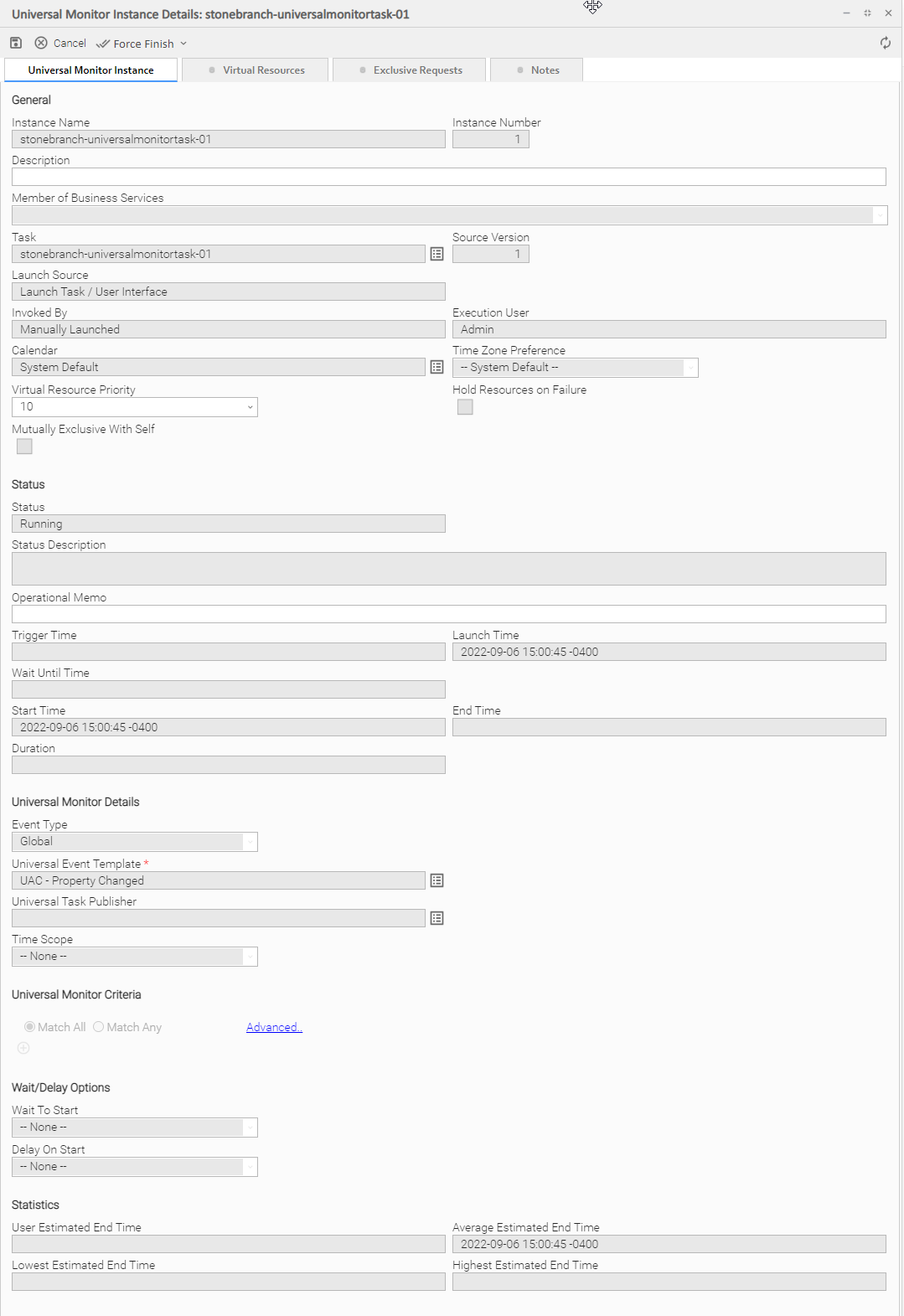
Universal Monitor Task Instance Details Field Descriptions
The following table describes the fields, buttons, and tabs that display in Universal Monitor Task Instance Details.
Field Name | Description | ||||||||||
|---|---|---|---|---|---|---|---|---|---|---|---|
General | This section contains general information about the task instance. | ||||||||||
Instance Name | Name of this task instance. | ||||||||||
Instance Number |
System-supplied; Sequentially assigned number, maintained per task, representing the creation order of the instance. | ||||||||||
Description | Description of this record. Maximum length is 255 characters. | ||||||||||
Member of Business Services | User-defined; Allows you to select one or more Business Services that this record belongs to. (You also can Check All or Uncheck All Business Services for this record.) You can select up to 62 Business Services for any record type, and enter a maximum of 2048 characters for each Business Service. If the Business Service Visibility Restricted Universal Controller system property is set to true, depending on your assigned (or inherited) Permissions or Roles, Business Services available for selection may be restricted. | ||||||||||
Task |
Name of the task that was run to create this task instance. Click the icon to display Task Details for the task. | ||||||||||
| Source Version | Version of the task that was run to create this task instance. | ||||||||||
Launch Source | System-supplied; Source from which this task was launched. Options:
| ||||||||||
Source Instance | System-supplied; UUID of the source instance.
| ||||||||||
Invoked by | System-supplied; how the task instance was launched. Options:
| ||||||||||
Execution User |
System-supplied; If the task was launched manually; ID of the user who launched it. | ||||||||||
Calendar |
Calendar associated with the task instance. | ||||||||||
Time Zone Preference | User-defined; Allows you to specify the time zone that will be applied to the task. Options:
| ||||||||||
Virtual Resource Priority | Priority for acquiring a resource when two or more tasks are waiting for the resource. This priority applies to all resources required by the task. Options: 1 (high) - 100 (low). Default is 10. | ||||||||||
Hold Resources on Failure |
If enabled, the task instance will continue to hold Renewable resources if the task instance fails. Renewable resources will be returned only if the task instance status is either Complete, Finished, or Skipped. | ||||||||||
| Mutually Exclusive With Self | If enabled, the task will not be allowed to run concurrently with itself. Task will not start until the instance that is running finishes. An instance will transition to Exclusive Wait status if it cannot start due to another instance already running. | ||||||||||
| Simulate | Specifies if the instance should execute under simulation mode. | ||||||||||
Status | This section contains information about the current status of the task instance. | ||||||||||
Status | |||||||||||
Exit Code |
System-supplied; the exit code captured by the Agent when executing the task (for example, a command or script). | ||||||||||
Status Description |
System-supplied; additional information, if any, about the status of the task instance. | ||||||||||
Operational Memo |
User-defined operational memo. | ||||||||||
Evaluation Time |
If time zone of user is different than time zone of task instance; Time at which Execution Restrictions and Run Criteria were evaluated based upon the requested time zone. (Time zone of task instance displays in parentheses.) | ||||||||||
Critical |
Indicates that this task is in the Critical Path of a workflow. | ||||||||||
| Critical Endpoint | Indicates that this task was defined as a Critical Endpoint of a Critical Path in a workflow. | ||||||||||
Wait Until Time |
Amount of time calculated to wait before the task was started, based on Wait To Start and Delay On Start times. | ||||||||||
Queued Time |
System-supplied; Date and time the task was queued for processing. | ||||||||||
Trigger Time |
System-supplied; Date and time the task instance was triggered. | ||||||||||
Launch Time |
System-supplied; Date and time the task instance was launched. | ||||||||||
Start Time |
System-supplied; Date and time the task instance started. | ||||||||||
End Time |
System-supplied; Date and time the task instance completed. | ||||||||||
Duration |
System-supplied; amount of time the task instance took to run. | ||||||||||
Universal Monitor Details | This section contains assorted detailed information about the task. | ||||||||||
Event Type | Type of Universal Event to monitor:
| ||||||||||
Universal Event Template | If Event Type is Global; Name of the Universal Event Template on which this Universal Monitor task is based. | ||||||||||
Universal Template | If Event Type is Local; Name of the Universal Template on which this Universal Monitor task is based. | ||||||||||
Event Template | If Event Type is Local; Name of the Event Template within the specified Universal Template on which this Universal Monitor task is based. | ||||||||||
Universal Task Publisher | Optional; Universal Extension-based Universal Task that will be:
The Running Universal Task Publisher can only publish Universal Events to this Universal Monitor, and this Universal Monitor can only match on Universal Events published by the Running Universal Task Publisher. The Publisher is expected to publish the events that this Universal Monitor is expecting to come in.
A Universal Monitor Task Instance that specifies a Publisher will show the associated Universal Task Instance representing the Publisher. | ||||||||||
Universal Task Publisher Variables | List of task variables to override.
The following order of precedence will apply if a variable is present in multiple scopes:
| ||||||||||
Time Scope | Allows monitoring of Universal Events that were published prior to the Universal Monitor task running, or limits how long the Universal Monitor task continues to monitor before becoming Failed, Options:
| ||||||||||
Expiration Action | If Time Scope is Relative; State to transition to if Relative Time Scope conditions are not met within the specific window. Options:
| ||||||||||
From | Format is (+/-)hh:mm If Time Scope = Relative; Together with the Time Scope To field, it allows you to specify a window of time, relative to the time the Universal Monitor task launched, during which the conditions of the Universal Monitor must be met. If the conditions are not met within the specified window, the Universal Monitor task instance will transition to Failed (default) or Finished status, as determined by the Expiration Action. hh must be a positive integer. mm must be a positive integer between 0 and 59 inclusive. For example, -124:00, -12:00, -6:00, 00:00, 6:00, 12:00, or 124:00. | ||||||||||
To | Format is (+/-)hh:mm If Time Scope = Relative; Together with the Time Scope From field, it allows you to specify a window of time, relative to the time the Universal Monitor task launched, during which the conditions of the Universal Monitor must be met. If the conditions are not met within the specified window, the Universal Monitor task instance will transition to Failed (default) or Finished status, as determined by the Expiration Action. hh must be a positive integer. mm must be a positive integer between 0 and 59 inclusive. For example, -124:00, -12:00, -6:00, 00:00, 6:00, 12:00, or 124:00. | ||||||||||
Universal Monitor Criteria | This section contains criteria for selecting emails to monitor. | ||||||||||
Match All / Match Any | Criteria for matching attributes of the selected Universal Event Template.
If no match criteria is specified, the Universal Monitor will match any published Universal Event of the selected Universal Event Template. | ||||||||||
Wait / Delay Options | This section contains specifications for waiting to start and/or delaying on start the task. | ||||||||||
Wait To Start |
Amount of time to wait before starting a task from the time that it was launched.
| ||||||||||
Wait Time | If Wait To Start = Time or Relative Time; Time of day (in 24-hour time) to wait until before starting the task. | ||||||||||
Wait Day Constraint | If Wait To Start = Time or Relative Time; Specification for whether or not to advance the wait time to another day. Valid values:
Default is – None --. | ||||||||||
Wait Duration | If Wait To Start = Duration; Number of days, hours, minutes, and seconds to wait before starting the task. | ||||||||||
Wait Duration In Seconds | If Wait To Start = Seconds; Number of seconds to wait before starting the task. | ||||||||||
Delay On Start |
Amount of time to delay the start of a task, after it has been launched, from the time that it is eligible to start; that is, all dependencies have been met. For example: it is not being held, it is not waiting on any predecessors, or there is no wait time specified.
| ||||||||||
Delay Duration | If Delay On Start = Duration; Number of days, hours, minutes, and seconds to delay after starting the task. | ||||||||||
Delay Duration In Seconds | If Delay On Start = Seconds; Number of seconds to delay after starting the task. | ||||||||||
Time Options | This section contains time-related specifications for the task instance. | ||||||||||
Late Start | If enabled, and if the task instance starts after the time or period specified, the task instance is flagged as late. You can specify a time or duration to determine a late start (see Late Start Type). To determine whether a task instance started late, open the task instance and locate the Started Late field; the field is checked if the instance started after the specified time. The Started Late field displays in the task instance Details only if the user specified a Late Start in the task Details. | ||||||||||
Started Late | System-supplied; this field is flagged if the task started later than the time specified in the Late Start fields. | ||||||||||
Late Start Type | Required if Late Start is enabled. Options:
| ||||||||||
Late Start Time | If Late Start Type = Time; Time after which the task start time is considered late. Use HH:MM, 24-hour time. | ||||||||||
Late Start Day Constraint | If Late Start Type = Time; Specification for whether or not to advance the late start time to another day.
Default is – None --. | ||||||||||
Late Start Nth Amount | If Late Start Day Constraint = Nth Day; Number of days to advance. | ||||||||||
Late Start Duration | If Late Start Type = Duration; Duration (amount of relative time) after which the task is considered to have started late. For a task within a workflow, the duration is the period between the time the workflow starts and the time the task itself starts. For example, a task might have a Late Start Duration of 60 minutes. If the workflow starts at 9:00 a.m. but the task itself does not start until 10:30, the task has started late. For a task that is not within a workflow, Late Start Duration has meaning only if the task has been held upon starting. For example, if a task has a Late Start Duration of 60 minutes and the Hold on Start field is enabled, if the task is not released from hold within the amount of time specified in the Late Start Duration field, the task has started late. | ||||||||||
Computed Late Start Time | If Late Start is enabled, the computed Date/Time for when the task instance will be Late Started. | ||||||||||
Late Finish | If enabled, and if the task instance finishes after the time or period specified, the task instance is flagged as late. You can specify a time or duration to determine a late finish (see Late Finish Type). To determine whether a task instance finished late, open the task instance and locate the Finished Late field; the field is checked if the instance finished after the specified time or lasted longer than expected. This field only appears on the task instance if the user specified a Late Finish in the task definition. | ||||||||||
Finished Late | System-supplied; this field is flagged if the task finished later than the time or duration specified in the Late Finish fields. | ||||||||||
Late Finish Type | Required if Late Finish is enabled. Options:
| ||||||||||
Late Finish Offset Type | |||||||||||
Late Finish Percentage Offset ( + ) | Required if Late Finish Offset Type = Percentage; Percentage of Average Duration to use as an offset. The late finish time is calculated by adding the offset to the Average Duration. | ||||||||||
Late Finish Duration Offset ( + ) | Required if Late Finish Offset Type = Duration; Duration to use as an offset. The late finish time is calculated by adding the offset to the Average Duration. | ||||||||||
Late Finish Duration Offset Unit | |||||||||||
Late Finish Time | If Late Finish Type = Time; Time after which the task finish time is considered late. Use HH:MM, 24-hour time. | ||||||||||
Late Finish Day Constraint | If Late Finish Type = Time; Specification for whether or not to advance the late finish time to another day.
Default is – None --. | ||||||||||
Late Finish Nth Amount | If Late Finish Day Constraint = Nth Day; Number of days to advance. | ||||||||||
Late Finish Duration | If Late Finish Type = Duration; Longest amount of time this task instance should take to run. | ||||||||||
Computed Late Finish Time | If Late Finish is enabled, the computed Date/Time for when the task instance will be Late Finished. | ||||||||||
Early Finish | If enabled, and if the task instance finishes before the time or period specified, the task instance is flagged as early. You can specify a time or duration to determine an early finish (see Early Finish Type). To determine whether a task instance finished early, open the task instance and locate the Finished Early field; the field is checked if the instance finished before the specified time or did not last as long as expected. This field only appears on the task instance if the user added Early Finish specifications to the task definition. | ||||||||||
Finished Early | System-supplied; this field is flagged if the task finished earlier than the time specified in the Early Finish fields. | ||||||||||
Early Finish Type | Required if Early Finish is enabled. Options:
| ||||||||||
Early Finish Offset Type | |||||||||||
Early Finish Percentage Offset ( - ) | Required if Early Finish Offset Type = Percentage; Percentage of Average Duration to use as an offset. The early finish time is calculated by subtracting the offset from the Average Duration. | ||||||||||
Early Finish Duration Offset ( - ) | Required if Early Finish Offset Type = Duration; Duration to use as an offset. The early finish time is calculated by subtracting the offset from the Average Duration. | ||||||||||
Early Finish Duration Offset Unit | |||||||||||
Early Finish Time | If Early Finish Type = Time; Time before which the task finish time is considered early. That is, enter a time at which the task should still be running. Use HH:MM, 24-hour time. | ||||||||||
Early Finish Day Constraint | If Early Finish Type = Time; Specification for whether or not to advance the early finish time to another day.
Default is – None --. | ||||||||||
Early Finish Nth Amount | If Early Finish Day Constraint = Nth Day; Number of days to advance. | ||||||||||
Early Finish Duration | If Early Finish Type = Duration; Shortest amount of time this task instance should take to run. | ||||||||||
Projected Late | System-provided if Late Start Time, Late Start Duration, or Late Finish Time is specified; This field is flagged if the task instance is projected to be late based on critical path projected end times (see Critical Path Projected Late Action Maximum and Critical Path Projected Late Threshold In Minutes Universal Controller system properties). . | ||||||||||
Critical Path Options | This section contains Critical Path-related specifications for the task. | ||||||||||
CP Duration | Optional; Allows you to override the estimated Critical Path Duration of the task when running in a Workflow; used in conjunction with the CP Duration Unit field. In most cases, this field should be left blank, which implies that the Controller will estimate the Critical Path Duration based on historical executions. Valid values are any integer equal to or greater than 0. Variables and Functions are supported. | ||||||||||
CP Duration (Resolved) | Displays the current resolved value of the CP Duration field, which may contain variables or functions that will be displayed as unresolved until the task instance starts. The CP Duration (Resolved) field can continue to change value until the task instance starts, at which time CP Duration will display as resolved and CP Duration (Resolved) will no longer be visible unless there was an issue resolving the variables and/or functions contained within CP Duration. If the Controller is unable to resolve CP Duration or it resolves to an invalid value, CP Duration will be ignored and the Controller will estimate the Critical Path Duration based on historical executions. | ||||||||||
CP Duration Unit | Type of CP Duration; used in conjunction with the CP Duration field. For example, for a CP Duration of two minutes, specify 2 in the CP Duration field and select Minutes in this field. Options:
Default is Minutes. | ||||||||||
Workflow Execution Options | This section contains Execution Restriction specifications for the task if it is within a Workflow. | ||||||||||
Execution Restriction | Specification for whether or not there is a restriction for this task to be run, skipped, or held. Options are:
If Execution Restriction on a task is Run or Skip, then when it is part of a Workflow that is being launched, the Restriction Period is evaluated. The task instance will be skipped if Execution Restriction is Skip and the date is within the Restriction Period or Execution Restriction is Run and the date is not within the Restriction Period. Execution Restriction can be set to Skip with a Restriction Period of - None -, meaning the restriction is always active and the task will be skipped when it is part of a Workflow. | ||||||||||
Restriction Period | If Execution Restriction = Run, Skip, or Hold; Period of time when the task is restricted. Options are:
| ||||||||||
Before Date | If Restriction Period = Before or Span; Date before which the restriction is valid. | ||||||||||
Before Time | If Restriction Period = Before or Span; Time on the selected date before which the restriction is valid. | ||||||||||
After Date | If Restriction Period = After or Span; Date after which the restriction is valid. | ||||||||||
After Time | If Restriction Period = After or Span; Time on the selected date after which the restriction is valid. | ||||||||||
Date List | If Restriction Period = On; Date(s) on which the restriction is valid. | ||||||||||
Statistics | This section contains time-related statistics for the task instance. | ||||||||||
User Estimated End Time | System-supplied; If the user entered information into the User Estimated Duration field in the task Details, the Controller uses this information to calculate an end time for the task instance, based on the date/time the task instance started. | ||||||||||
Lowest Estimated End Time |
System-supplied; Lowest estimated end time of the task instance, calculated by the Controller based on the date/time the task instance started. | ||||||||||
Average Estimated End Time |
System-supplied; Average estimated end time of the task instance, calculated by the Controller based on the date/time the task instance started. | ||||||||||
Highest Estimated End Time |
System-supplied; Highest estimated end time of the task instance, calculated by the Controller based on the date/time the task instance started. | ||||||||||
| Projected Start Time | System-supplied; projected start time of the task instance, calculated by the Controller based on Projected End Time minus Projected Duration. | ||||||||||
Projected End Time | System-supplied; projected end time of the task instance, calculated by the Controller based on the projected end time of its predecessor (or the maximum projected end time of all its predecessors, if more than one path exists to that task instance) plus its estimated critical path duration. | ||||||||||
Metadata | This section contains Metadata information about this record. | ||||||||||
UUID | Universally Unique Identifier of this record. | ||||||||||
Updated By | Name of the user that last updated this record. | ||||||||||
Updated | Date and time that this record was last updated. | ||||||||||
Created By | Name of the user that created this record. | ||||||||||
Created | Date and time that this record was created. | ||||||||||
Status History | History of all statuses that the task instance has gone through. | ||||||||||
Buttons | This section identifies the buttons displayed above and below the Task Instance Details that let you perform various actions. | ||||||||||
Update |
Saves updates to the record. | ||||||||||
Force Finish | |||||||||||
Hold |
| ||||||||||
Skip |
| ||||||||||
Re-run | See Re-running a Task Instance. Note If the Re-run (Suppress Intermediate Failures) Permitted Universal Controller system property is set to true, the Re-run button is a drop-down list containing the following options:
The Re-run button does not display if the task instance does not qualify for Re-run. If the task instance qualifies for Re-run, but already has Retry Options enabled, Re-run (Suppress Intermediate Failures) displays as disabled in the drop-down list. | ||||||||||
View Parent |
Displays the task instance Details for the parent Workflow of this task instance. | ||||||||||
Delete |
Deletes the current record. | ||||||||||
Refresh | Refreshes any dynamic data displayed in the Details. | ||||||||||
Close | For pop-up view only; closes the pop-up view of this task instance. | ||||||||||
Tabs | This section identifies the tabs across the top of the Task Instance Details that provide access to additional information about the task instance. | ||||||||||
| Actions | Actions that the Controller took automatically based on events that occurred during the execution of this task. Events are:
Actions are:
| ||||||||||
Virtual Resources |
| ||||||||||
Exclusive Requests |
| ||||||||||
Notes |
|
Running a Universal Monitor Task
You can run a Universal Monitor task:
- Manually, by clicking the Launch Task or Launch Task with Variables button in the Universal Monitor Tasks list or Universal Monitor Task Details Action menu.
- As part of a workflow.
- Specify triggers that run the task automatically based on times or events.
Monitoring Task Execution
You can monitor all system activity from the Activity Monitor and can view activity history from the History list.